Quick Search
Quick Search provides an intuitive search bar and smart filter suggestions to help you find emails and attachments quickly and efficiently. It also supports searching across Notes, Contacts, and Bookmarks allowing you to find items across these sections quickly.
Search for email simply by typing the word you remember from the content, subject, From/ To/ Cc of the email. You can narrow your search further by using other parameters such as sender, subject, date, folder, attachment type, tags, etc., making your search more targeted.
Once you search for a particular search filter, you can save the same for future use to retrieve the latest emails matching the same conditions.
Accessing the Search Bar
The search bar will appear at the top-right of your Mail tab, providing more space for your queries. The search bar will appear at the top-right of your Mail tab, providing more space for your queries.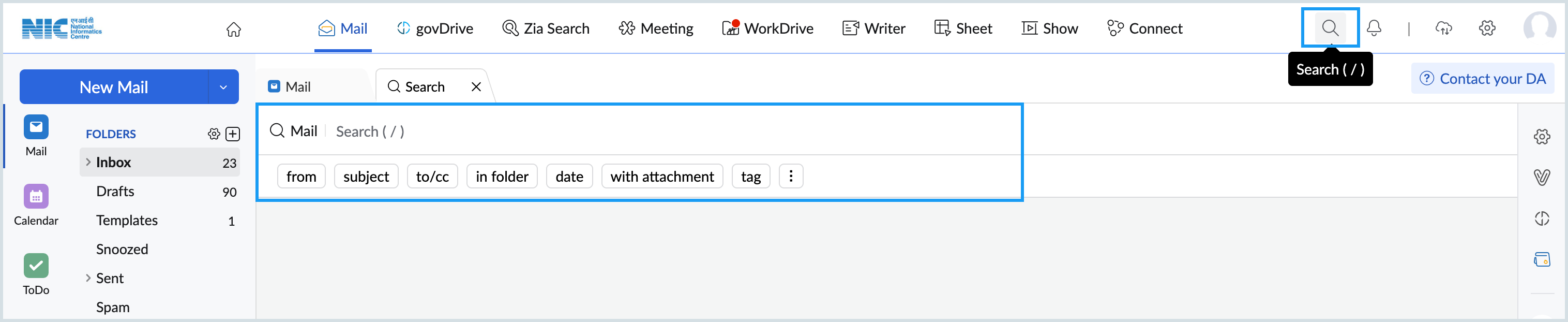
Email Search
To search for an email, you can search using different criteria such as the From address, To address, Cc addresses, or the content in the email.
If you search for a word or phrase without selecting any specific criteria, NICeMail will automatically display emails that contain that word or phrase anywhere in the email.
To refine your search further and find emails containing the exact word or phrase, keep your search term within double quotation marks.
For example, typing "project deadline" will display only emails that include that exact phrase, thus making your search results more precise and relevant.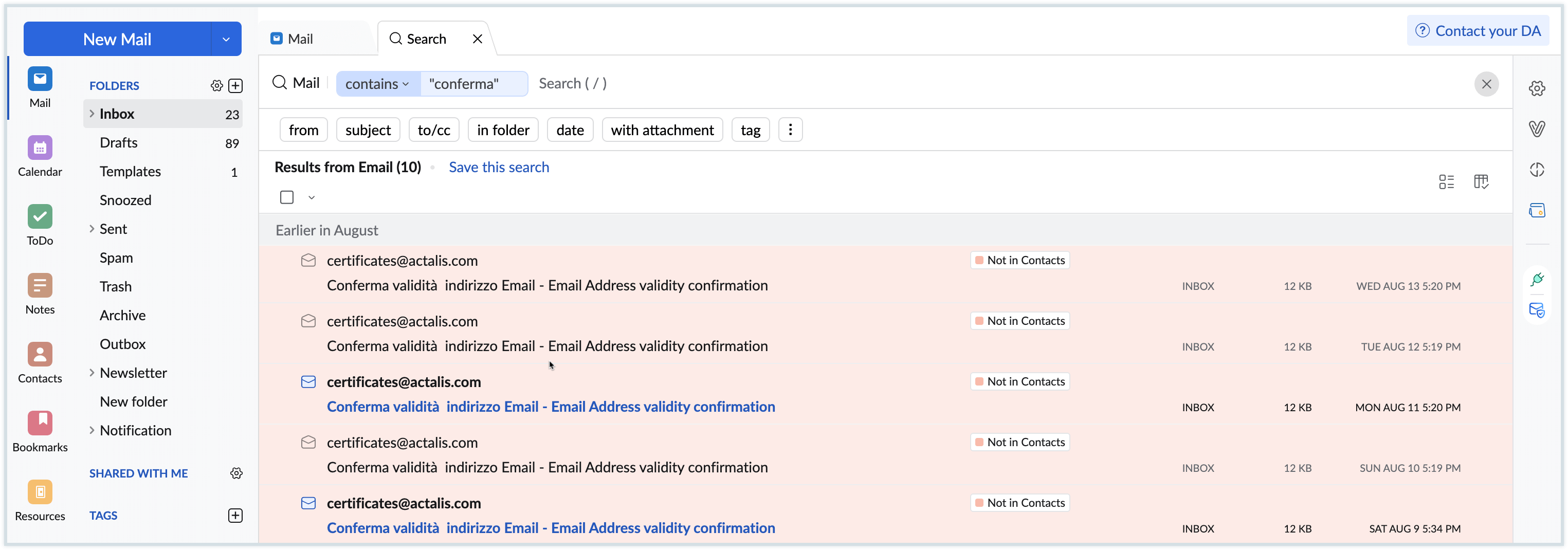
To help you select a filter, the relevant search filters will be suggested in a dropdown list as and when you enter the search word or phrase.
You can select options from the drop-down menu or apply other parameters such as sender, subject, or recipient, etc to narrow down your search further and find your emails faster.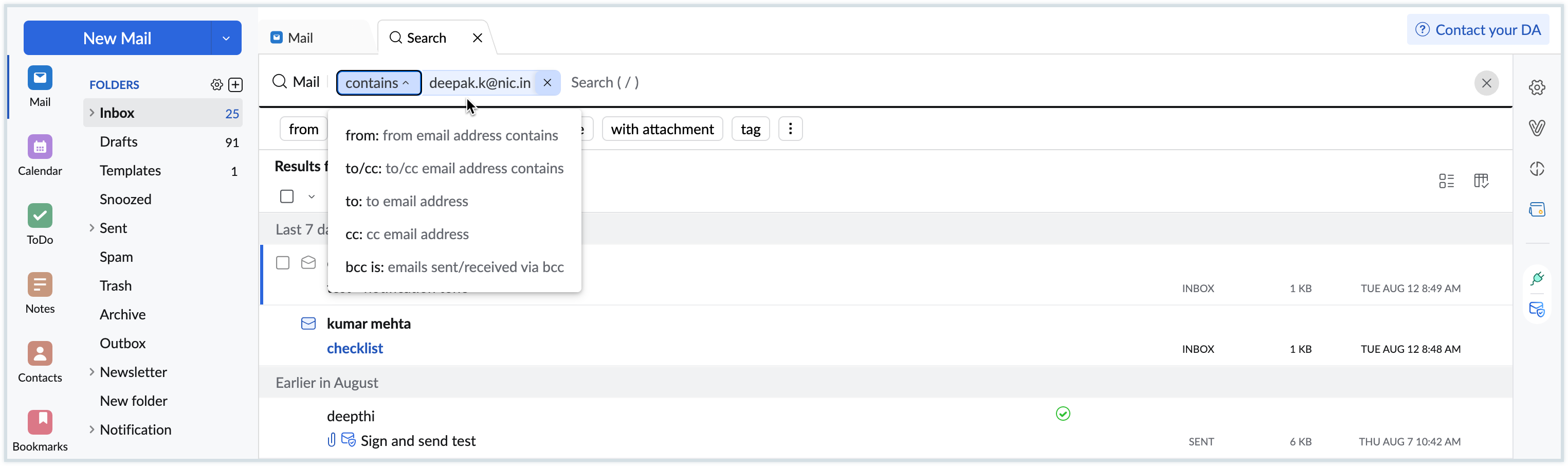
Listing emails
Apart from using the search bar to find an email, NICeMail also helps you to quickly view all emails from a particular sender or with a specific subject directly.
List Emails from a Sender
- Open your mailbox and locate any email from a particular sender.
- Right-click on the email from the email listing.
- From the menu, select “List emails from this sender.”
- NICeMail will display all the emails you have received from that particular sender
List Emails with a Subject
- In your mailbox, locate an email that has the subject you want to list the emails for.
- Right-click on the email from the email listing.
- Choose “List emails with this subject” in the menu that appears.
- You will see a list of all emails in your mailbox that share the same subject line.
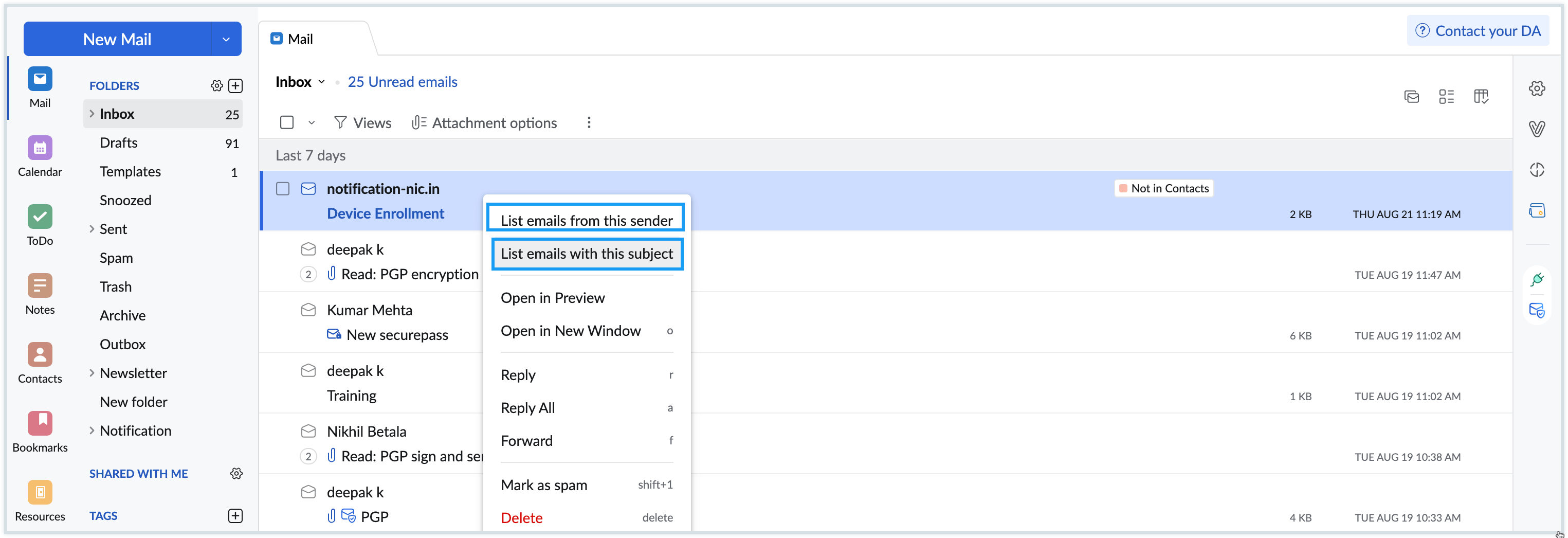
This feature is a quick way to group and view emails when you know who the sender is or what the subject is and have more emails sent to you from the sender or with the subject.
Searching by Criteria
- Search Emails by Sender - Find all emails sent by a specific person by searching using the sender’s name or email address
- Click the From field just below the search bar.
- Enter the sender’s email address or name.
- Results will show all emails from that sender.
- You can combine the From criteria with additional options such as Subject, Date, with attachment, to/cc, In folder, etc for more precise results.
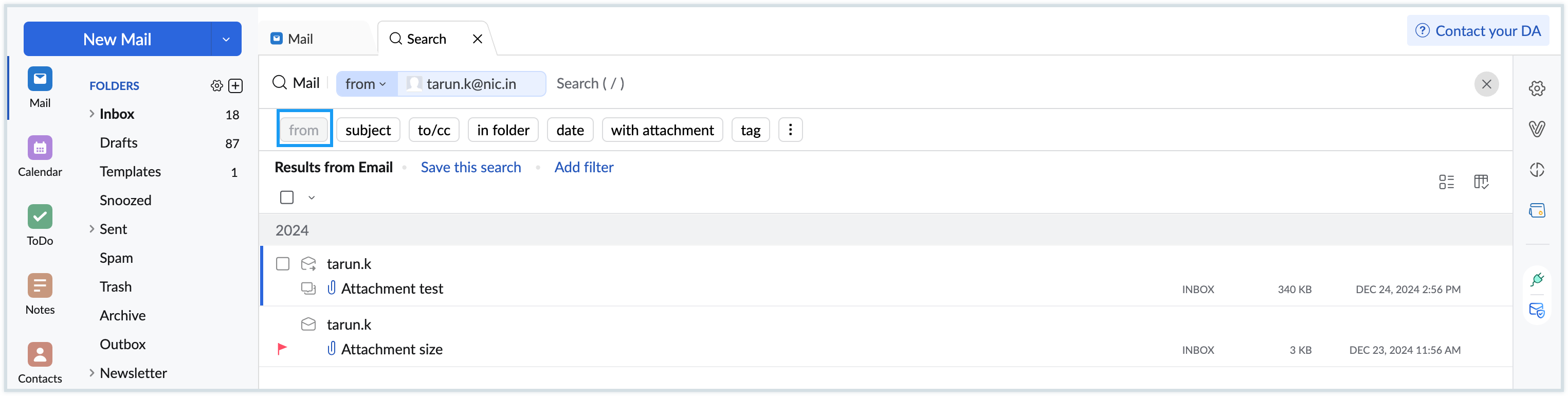
- Search Emails by Subject - Locate emails containing specific words or phrases in the subject line
- Click the Subject field.
- Enter keywords from the email subject line.
- Relevant emails with matching subjects will appear.
- You can combine the Subject criteria with additional options such as From, Subject, Date, with attachment, In folder, to/cc, etc for more precise results.
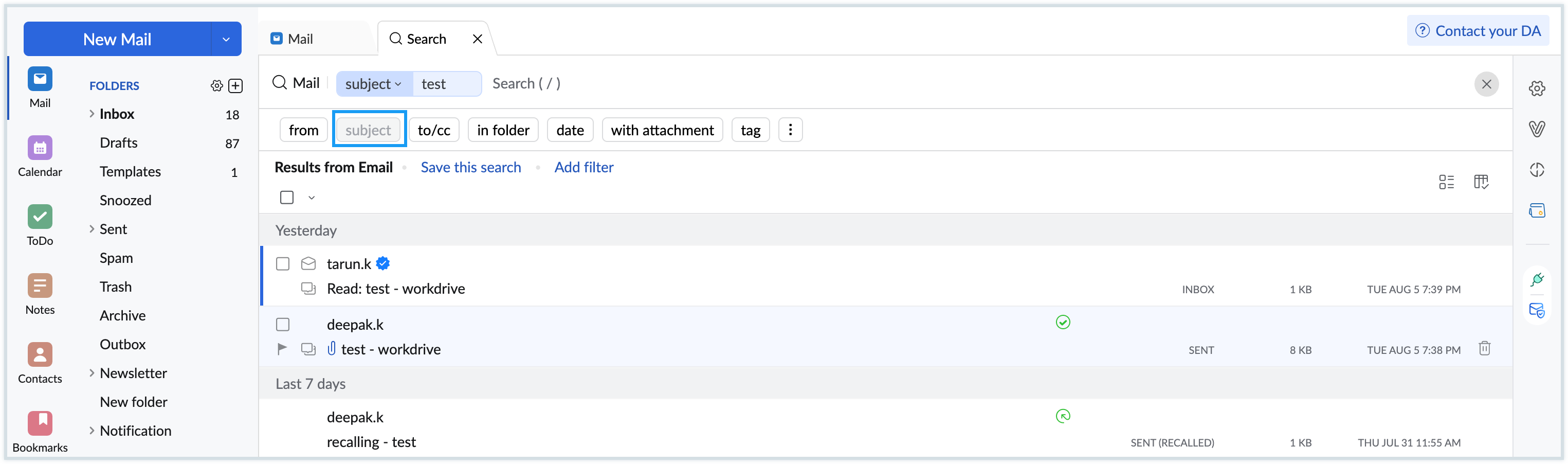
- Search Emails by Recipient (To/Cc) - Search for emails sent to or copied to particular recipients
- Click the To/Cc field located just below the search bar.
- Enter the email address or name of the recipient you are searching for.
- You can add multiple addresses if needed.
- The search results will display all emails where the specified address appears in the To or Cc fields of the message.
- You can combine the To/Cc criteria with additional options such as From, Subject, Date, with attachment, In folder, etc for more precise results.
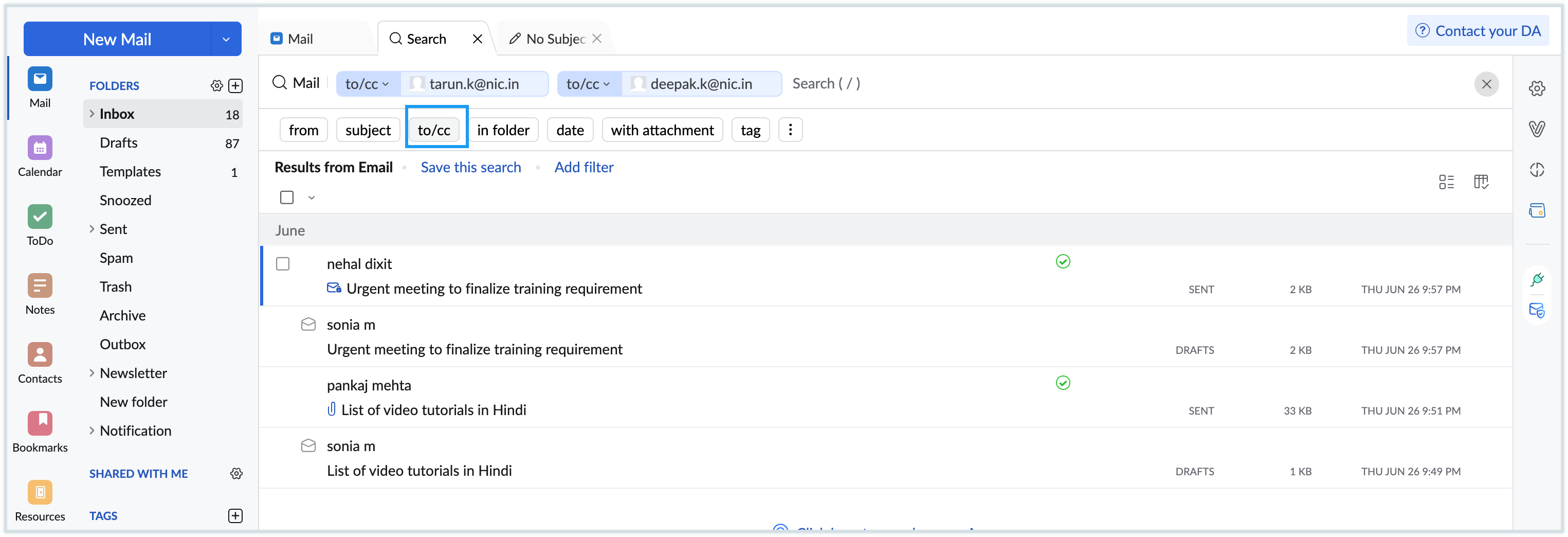
- Search Emails Within a Folder - Narrow your search to emails stored in a specific folder in your mailbox
- Click the In folder field located just below the search bar.
- Choose the desired folder from the drop-down list.
- The search results will show only the emails located within the selected folder that meet your search criteria.
- You can combine the In folder criteria with additional options such as From, To/Cc, Subject, Date, with attachment, etc for more precise results.
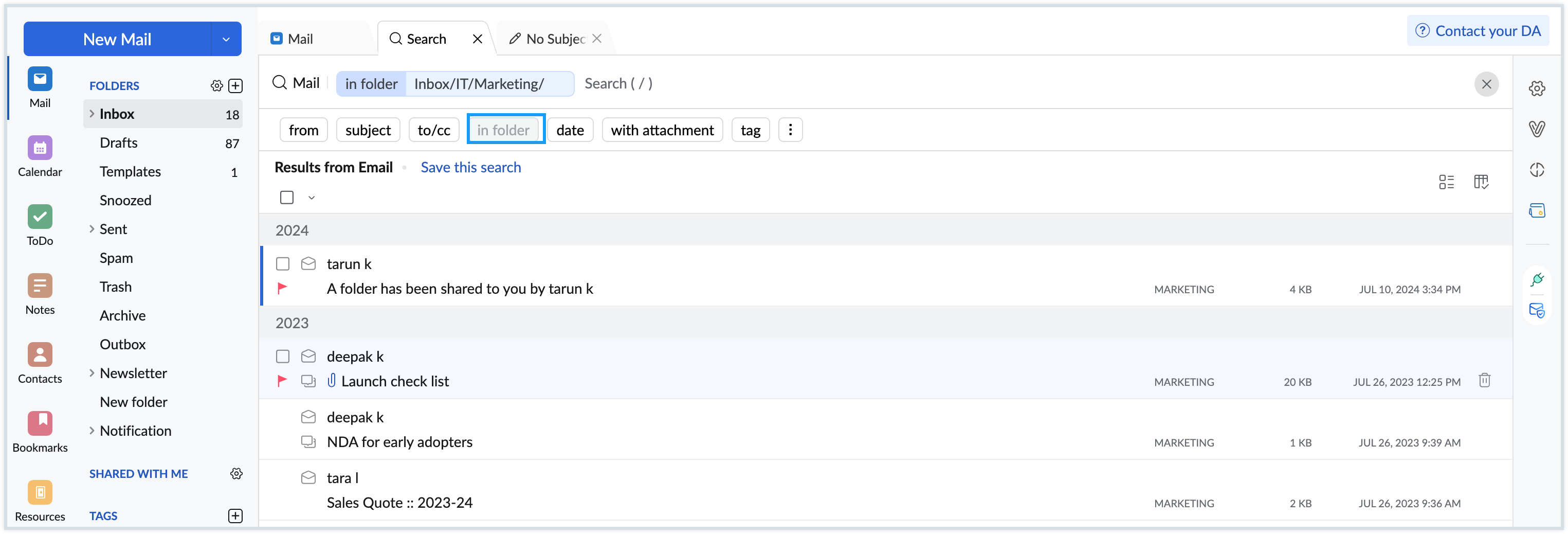
- Search Emails by Date - Filter emails based on when they were sent or received
- Click the Date field located just below the search bar.
- Select a specific date, range, or period.
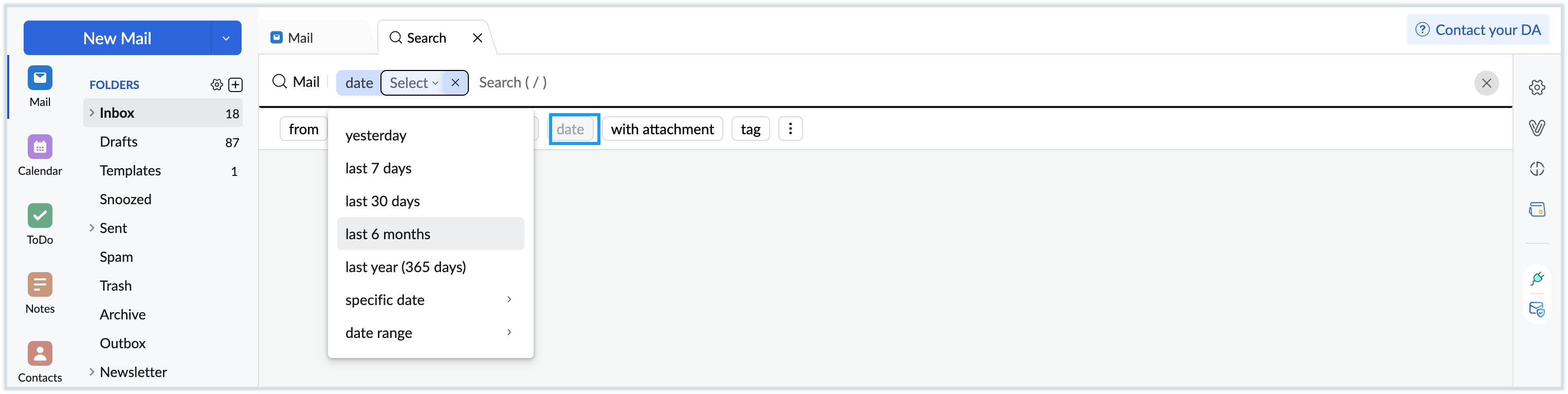
- Only emails from this timeframe will be listed.
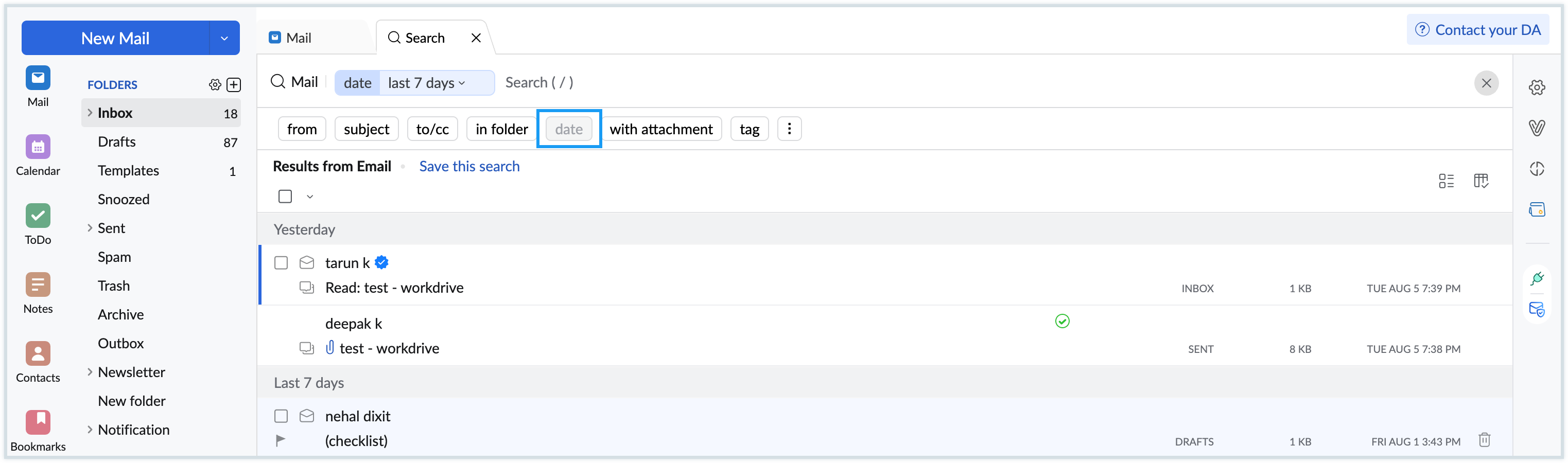
- You can combine the Date criteria with additional options such as From, To/Cc, Subject, Date, with attachment, In folder, etc for more precise results.
- Search Emails with Attachments - Find emails that include attachments, optionally filtering by type
- Click the With attachment field located just below the search bar.
- Once selected, the search will display only emails that include one or more attachments.
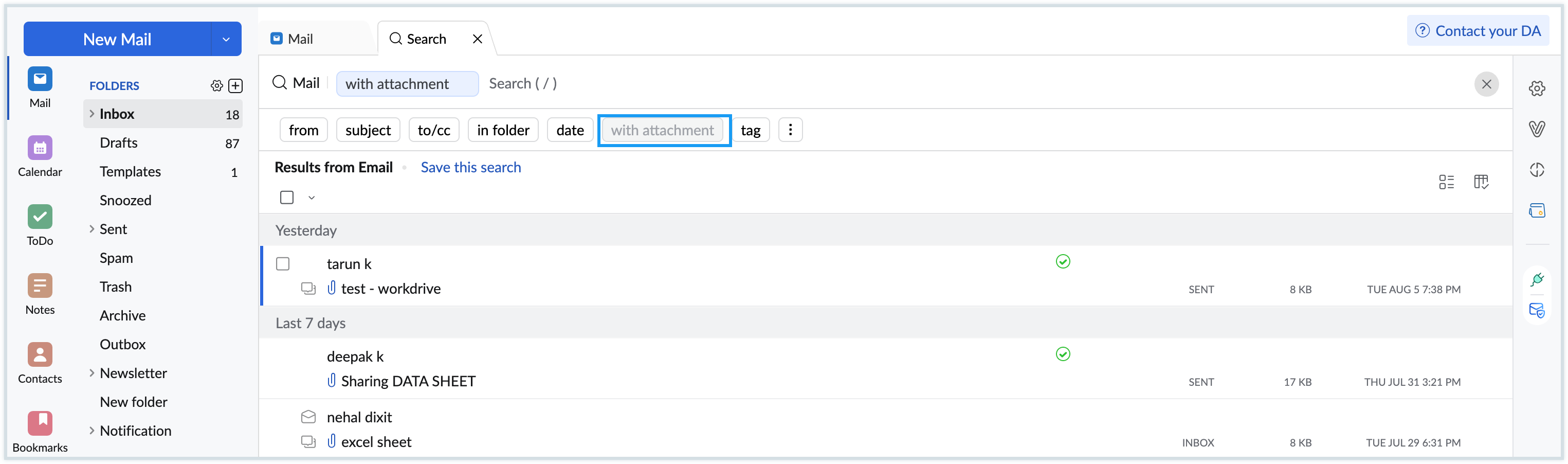
- For further refinement, click the three dots next to the With attachment field to open the Attachment type criteria dropdown to specify the kind of file you’re seeking (e.g., DOC, PPT, XLS, PDF, and others).
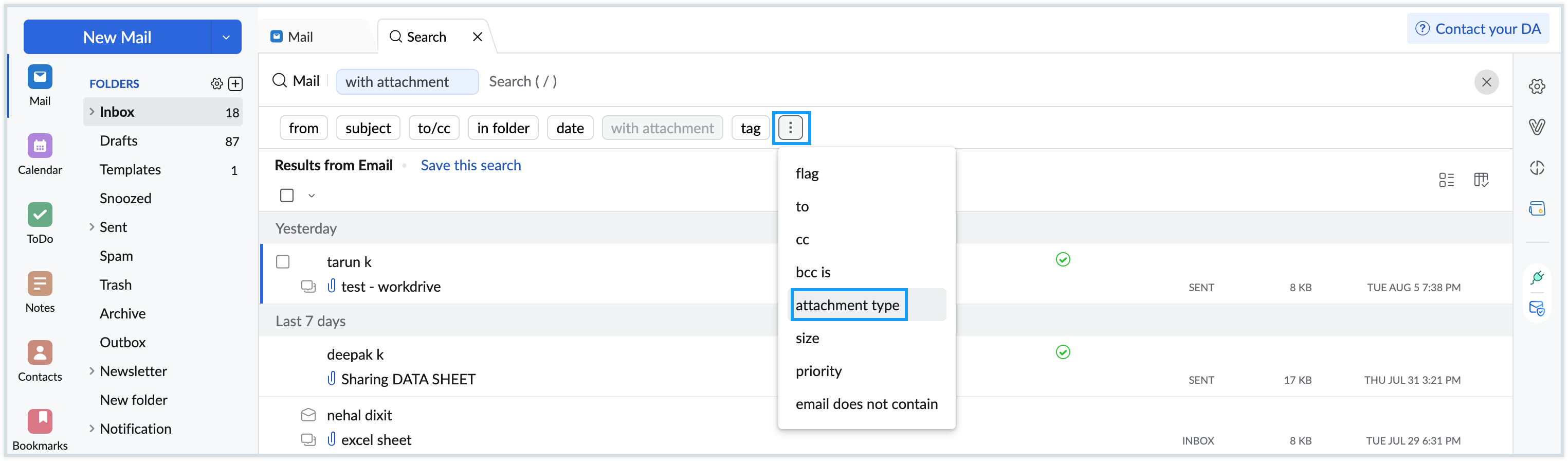
- You can also combine the With attachment criteria with others like From, To/Cc, Subject, In folder, or Date to narrow results more precisely.
- Search Emails by Tag - Look up emails that are marked with specific tags you’ve applied.
- Click the Tag field located below the search bar.
- When you click the Tag field, a drop-down menu appears listing all the tags you have created or applied to your emails.
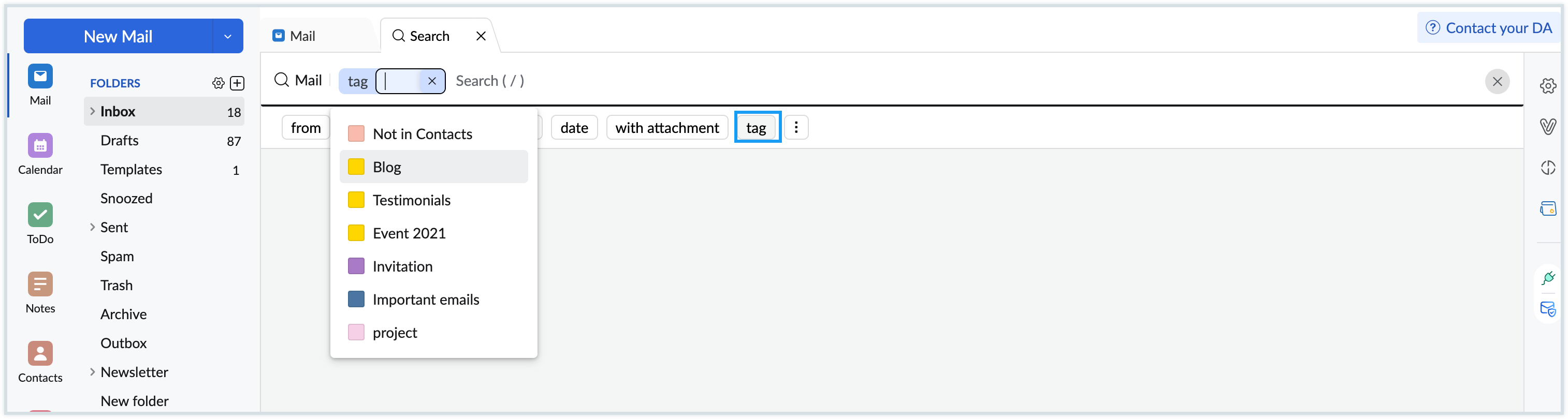
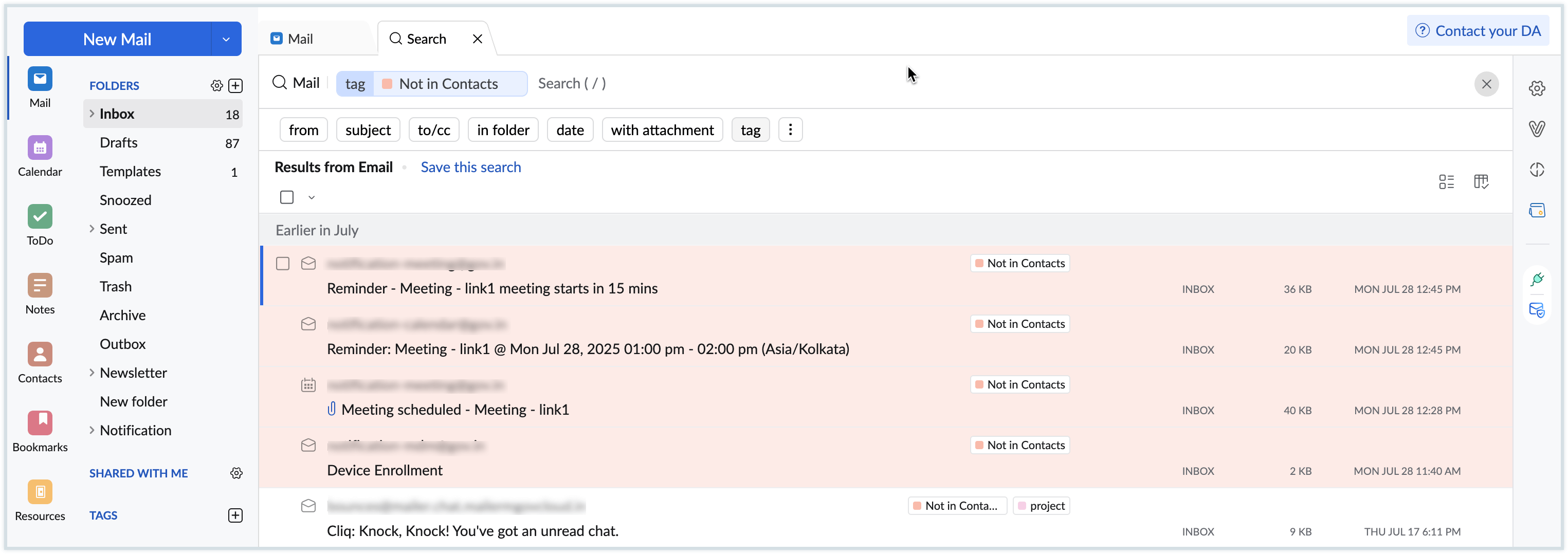
- Select one or more tags from this dropdown to search for emails associated with those tags.
- The results will display all emails that have the selected tag(s) attached.
Saved Searches
Sometimes, you repeatedly "Search" for a pattern of emails in your Inbox and based on the content. NICeMail provides you with an option to save such 'Searches' for future use. You can save the search, and such saved searches will appear in the left side bar for quick access as a separate section. This feature is particularly useful in cases where you want emails with specific message content to be available for accessing easily without undergoing the same set of searches.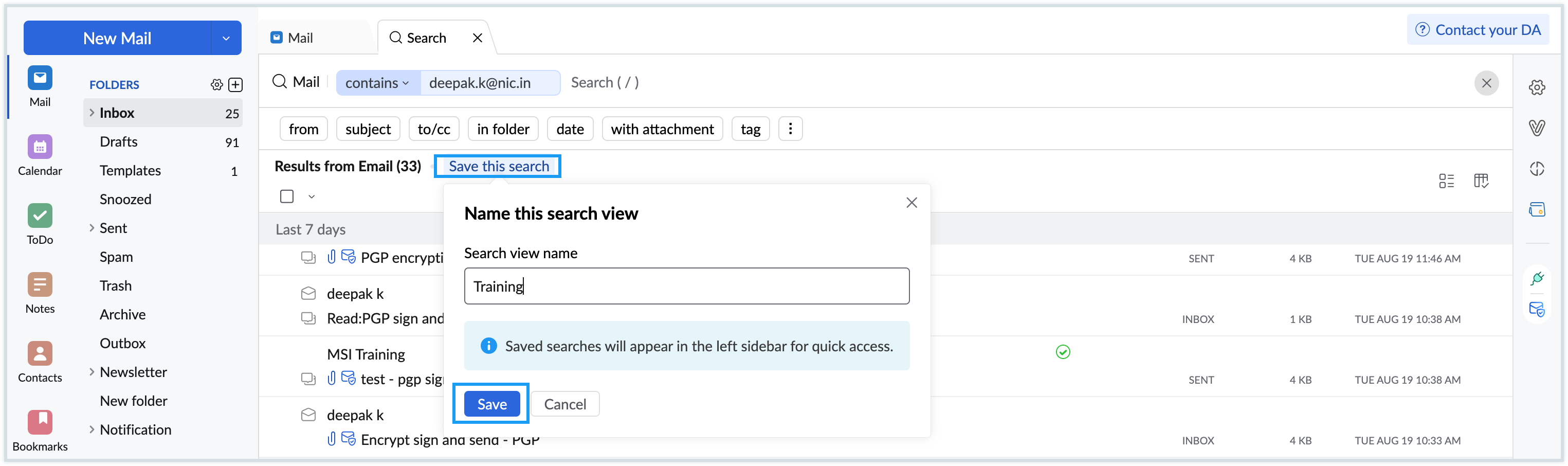
In the "Saved Searches" only the search conditions are stored. Every time you select the Search Condition, a new search is performed, and the results would include the newer emails also.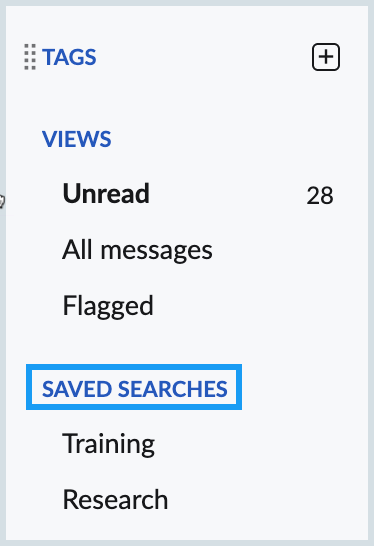
Enabling Quick Search
To start using the new search interface:
- Open Settings in your NICeMail account.
- Go to System Settings.
- Locate the Search Layout section.
- Select the option Quick Search.
- Refresh your browser so the new interface activates.
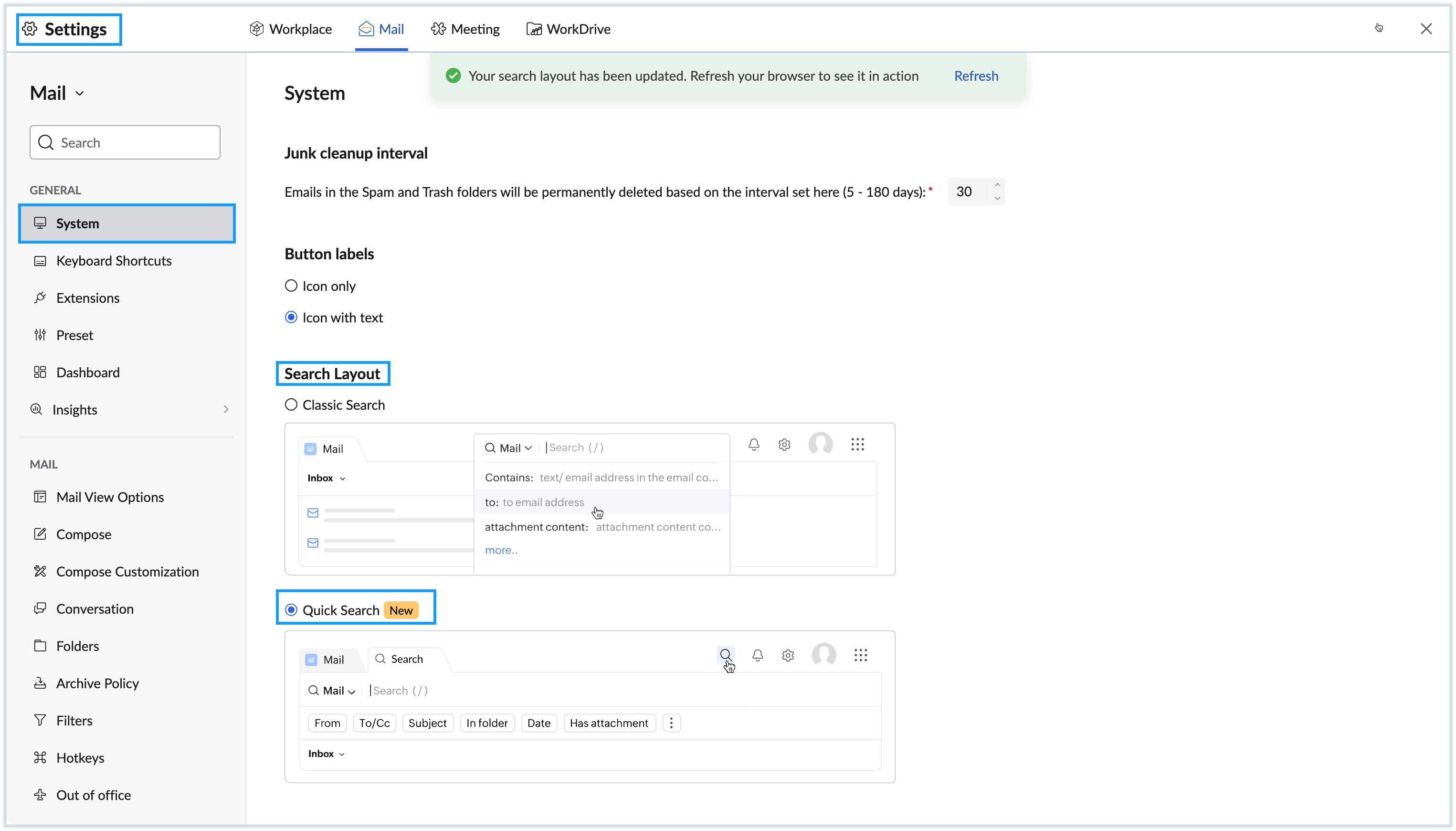
You may switch between Quick Search and Classic Search at any time.