Sending email
One of the most basic functions of an email service is sending emails. NICeMail provides rich text format editors for sending properly formatted emails. The recipients of the email can be picked from contacts.
NICeMail is explicitly built for businesses and helps with sending business emails and normal correspondences. However, as per the policy, NICeMail cannot be used to send mass emails or marketing emails to unknown senders.
Email Composer/ Editor
Click the New Mail button in the left pane, to open the NICeMail composer, with Rich Text Formatting options. The composer opens in a tab, where you can draft your email. You can choose the inline editor or the new window option to reply to/forward emails from the Settings. The default settings for the Composer can be customized from the Compose Settings.
The composer includes the following:
- From: The From address can be selected from the drop-down which contains the main email address of your account, your email aliases, and the external email addresses configured. The corresponding Display name will also be displayed next to the selected email address. You can also configure an external email address as a From Address.
- To: Specify the direct recipients of the email here. The organization's email addresses will be available from AutoFill. Click the To Label, to open the address book and choose an email address from the address book.
- Cc (Carbon Copy): Specify the recipients to whom the email should be copied. When you add an email address in Cc, other recipients will be able to view the addresses.
- Bcc: (Blind Carbon Copy): Specify the recipients to whom the email should be copied, without exposing the email addresses to others. The other recipients will not know about the email addresses in Bcc.
- Subject: Title or a Short Summary of the contents of the email
Undo/Redo in the Compose Toolbar
The Undo and Redo options help you easily manage your changes while drafting an email.
You can quickly reverse or reapply your recent text or formatting actions without manually editing your content.
The Undo and Redo icons are available in the Compose Toolbar, positioned towards the left side of the toolbar, near the formatting options.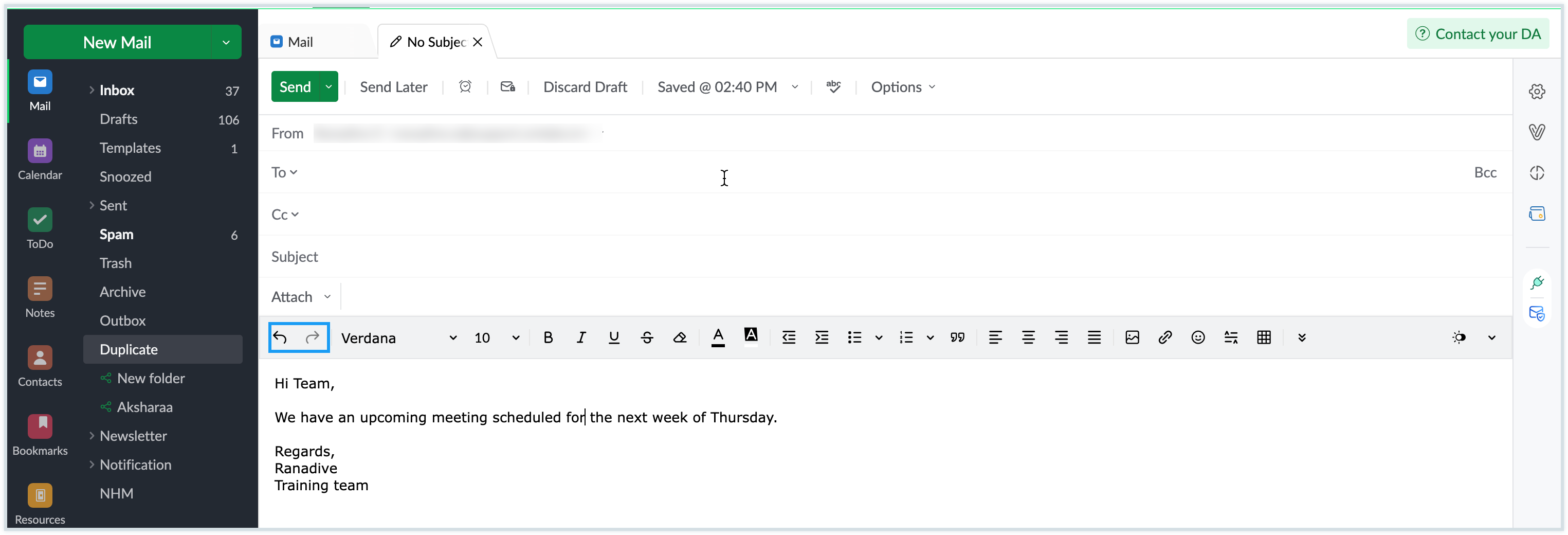
These icons allow you to conveniently correct or restore your changes as you compose your message.
- Undo – Reverses your most recent text or formatting action.
- Redo – Reapplies the action that you just reversed using Undo.
This helps you draft emails more efficiently, especially with formatting or making quick edits.
Note
This Undo/Redo in the compose toolbar is available only for the compose in Zimbra template.
Mail Content - Richly Formatted Mail
NICeMail provides a WYSIWYG (What You See Is What You Get) editor, which provides options to send a richly formatted email with images, tables, hyperlinks, and even smileys. The formatting options allow you to personalize the layout and your email. The built-in Spell-checker helps you to perform a spell check in your outgoing emails, across multiple languages. You can choose the encoding for the outgoing email. It is recommended that you use UTF-8 for outgoing emails, as it is capable of encoding all characters in Unicode.
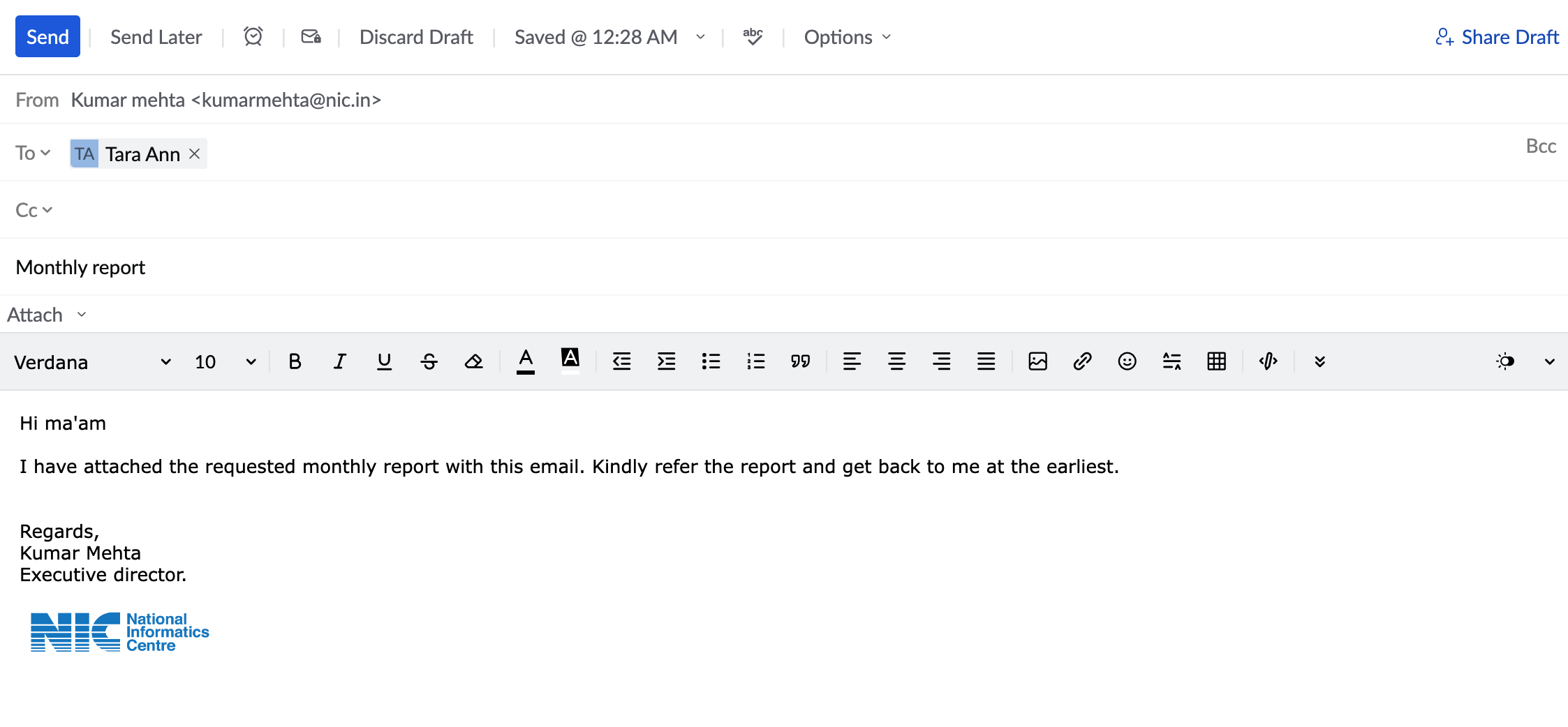
Here is a list of formatting options available in the Rich Text mode:
- Bold
- Italics
- Underline
Strike through- Font Face Options
- Font Size Options
- Font Color Options
- Background Color for text (Text highlight)
- Alignment Options
- List Options
- Indentation for text and Lists
- Line Spacing
- Superscript
- Subscript
- Text Direction
- Quote
- Remove formatting
- Format painter
Other than the formatting options available, you can also insert the following in your emails:
- Hyperlinks - Directs a selected portion of the text to the linked URL or email address.
- Images - Inserts images either from the disk storage or directly from the web.
- Signatures - Inserts the selected signature in the composer.
- HTML - Provides options to enter content in HTML format, which will be reflected in the compose window.
- Tables - Inserts tables according to the customizations provided.
- Horizontal Separators - Inserts a horizontal line between text.
- Smiley - Inserts the selected smileys from the list of options.
Indentation support for Upper and Lower alpha , Roman and Greek
The Indentation Support feature allows you to create and organize lists using different numbering (1,2,3..) and lettering formats such as Upper/Lower Alpha (A, a), Roman (I, i), and Greek (α).
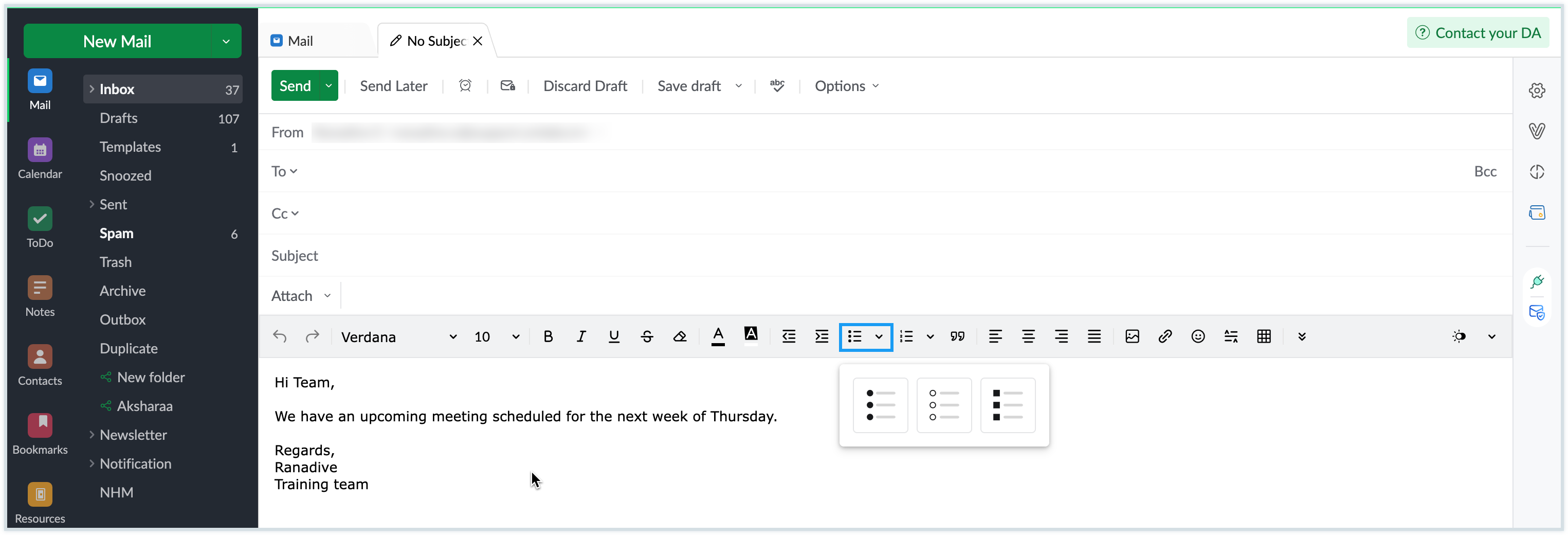
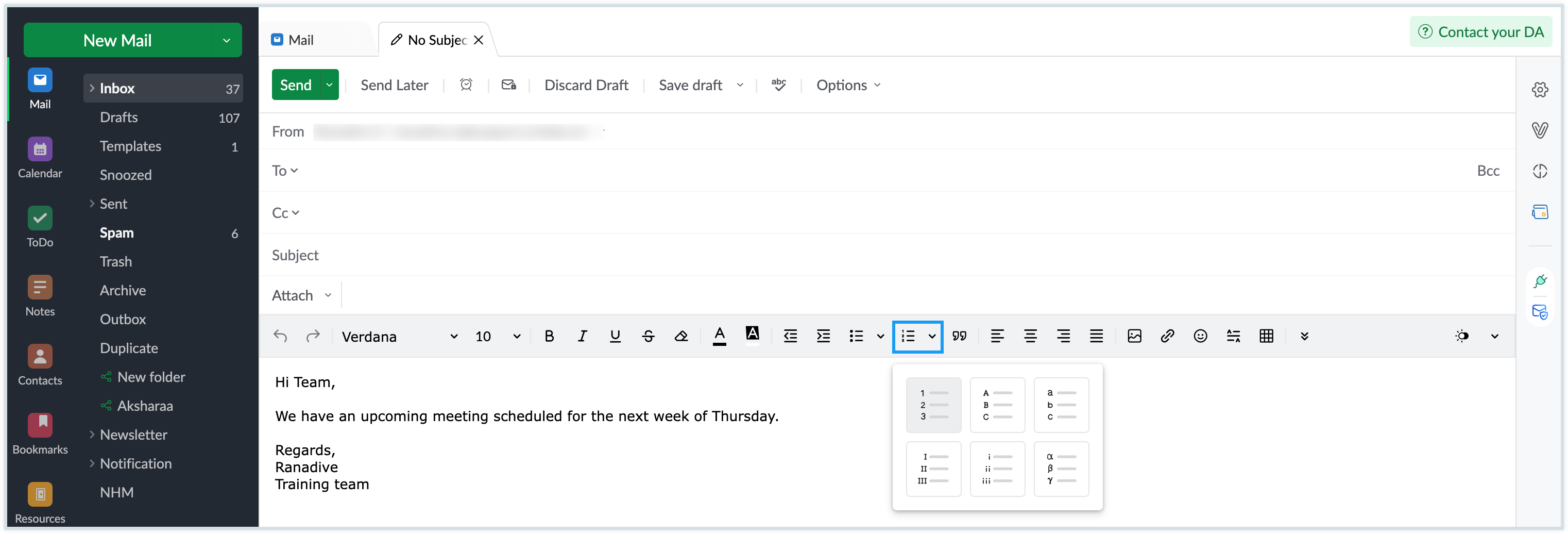
This helps you structure your content in a more readable and hierarchical way while composing or editing emails.
Note
This Indentation support for Upper and Lower alpha , Roman and Greek in the compose toolbar is available only for the compose in Zimbra template.
Voice Recording
Audio messages are a step ahead of text messages and it adds a personal touch to the recipients. Gone are the days when you had to record audio on your computer and then attach it to an email. NICeMail's Record audio feature in the Compose mail window allows users to send voice messages with ease. Follow these steps to send a voice message as an attachment:
- Log in to https://mail.gov.in/ .
- Select New Mail, click the Record audio button from the compose mail window and follow the on-screen instructions.
- If necessary, you can Pause the recording in between and continue from where you left off.
- Once you are done, click the Stop button to complete the audio.
- Click Attach recording, Rename the file to your preference and hit the Send button. Recipients can listen to the audio directly from the web browser by clicking on the Play button.
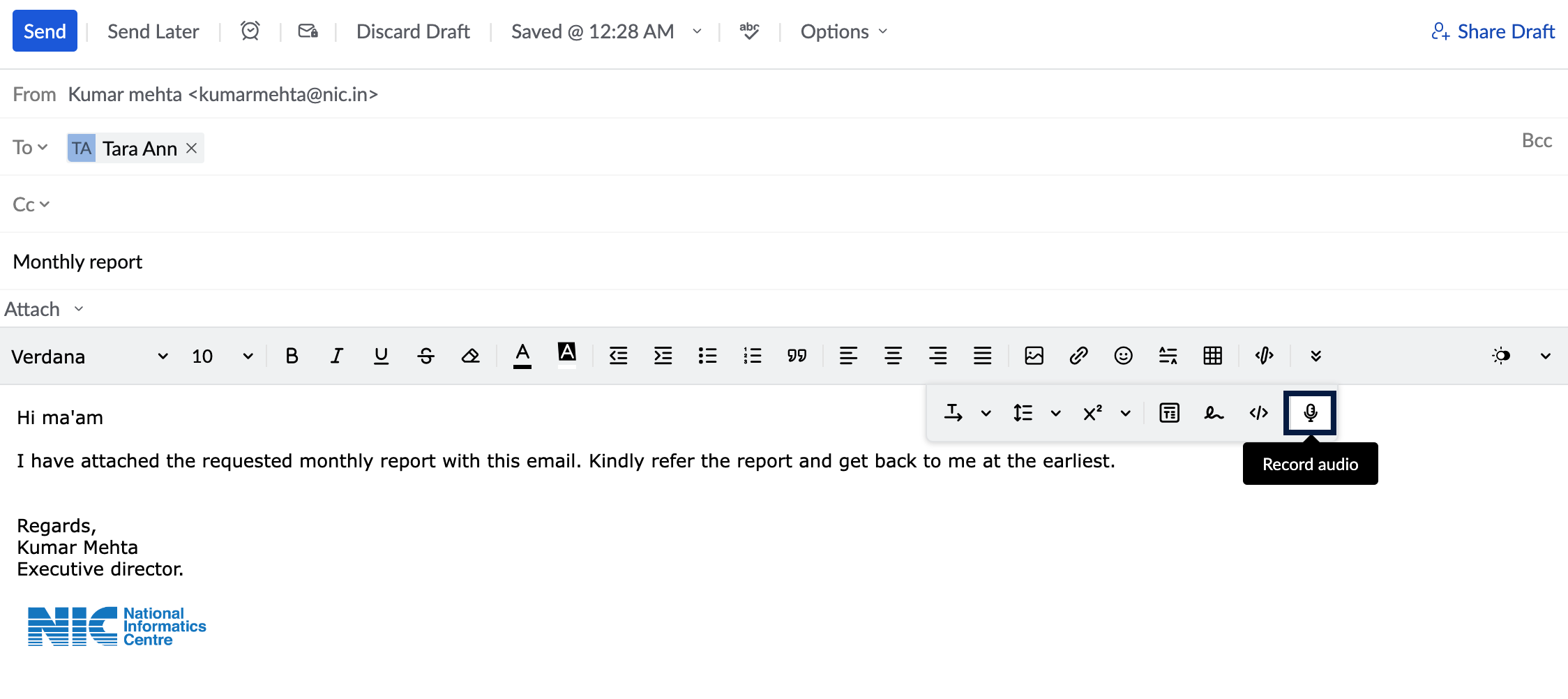
Note:
Users can see the recording size at the time of recording the audio and after attaching it. However, below are a few points to remember when you record voice messages:
- The maximum permissible attachment size depends on the settings configured by your administrator.
- A minimum of 2MB is required before you can record an audio message.
- The audio size cannot be 0KB even if the message is too short.
Plain Text Mail
A plain text email is one that contains only the content of the email, without any formatting such as Bold, Italics etc. You can choose the Plain Text option to send an email without any formatting. Click the drop-down in the right corner of the composer, and choose Plain text mode.
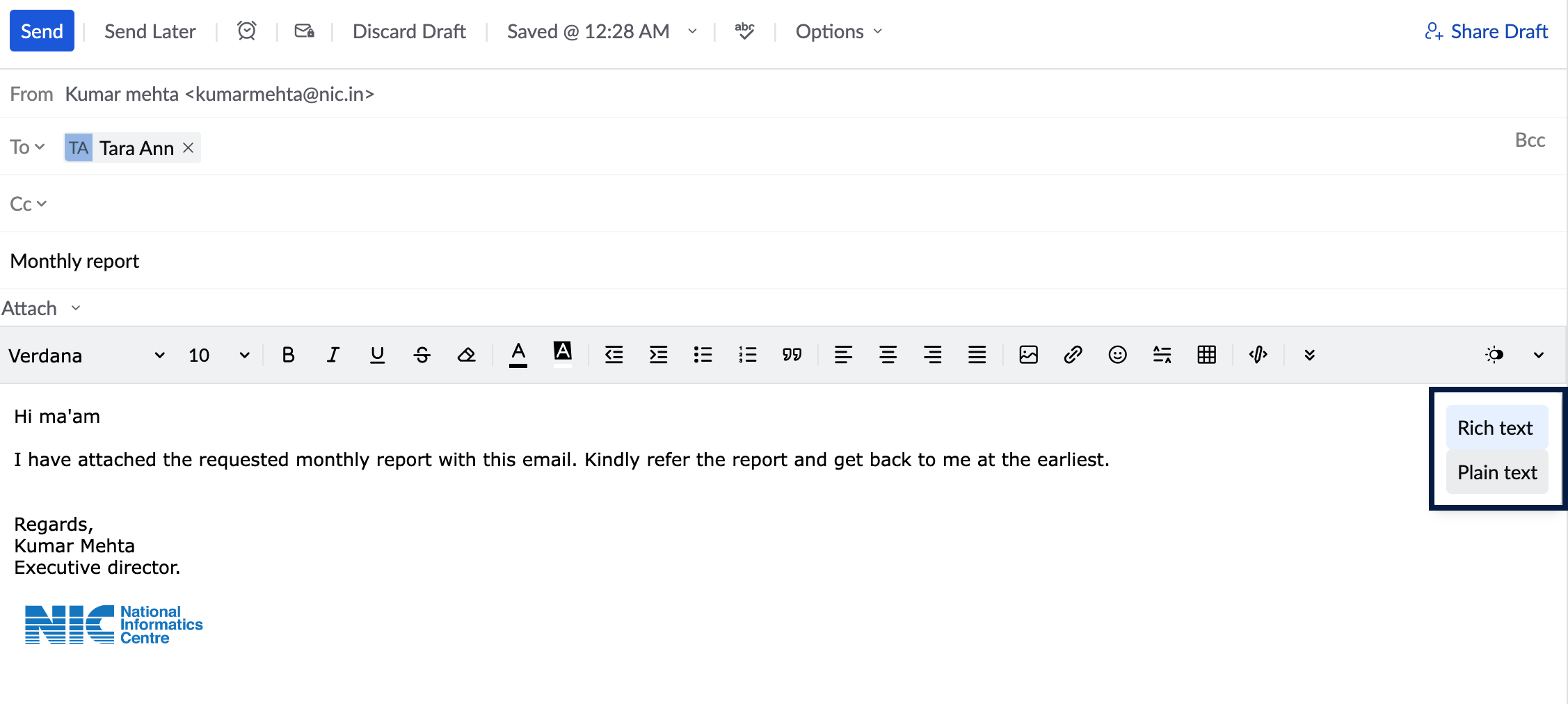
The system will request confirmation for converting Rich Text to Plain text. On confirming, the formatting toolbar will be hidden and you will see only the spell check icon. Any formatting changes made to the content and signatures will be lost along with any media or table inserted. These formatting changes will also be reflected when you save the email as a draft or template. Hence, the message will be sent as a plain text email.
To revert to the Rich Text mode, click the same drop-down and choose Rich Text mode. Now you will be able to format the text that you've inserted, add tables, images etc. Even if you revert to Rich Text Mode, the prior formatting will not be restored.
Translate Emails
NICeMail helps you compose emails in a different language other than English using the Translate Emails feature. You can translate your email content while drafting the email content itself. You can choose to send the translated content alone or send it along with the original content.
Follow the below steps to translate your email content while drafting:
- Log in to your NICeMail account.
- Click New Mail at the top left and start typing your email.
- Click on the Translate Icon at the right of the compose mail window. It will become clickable only after you've entered the content.
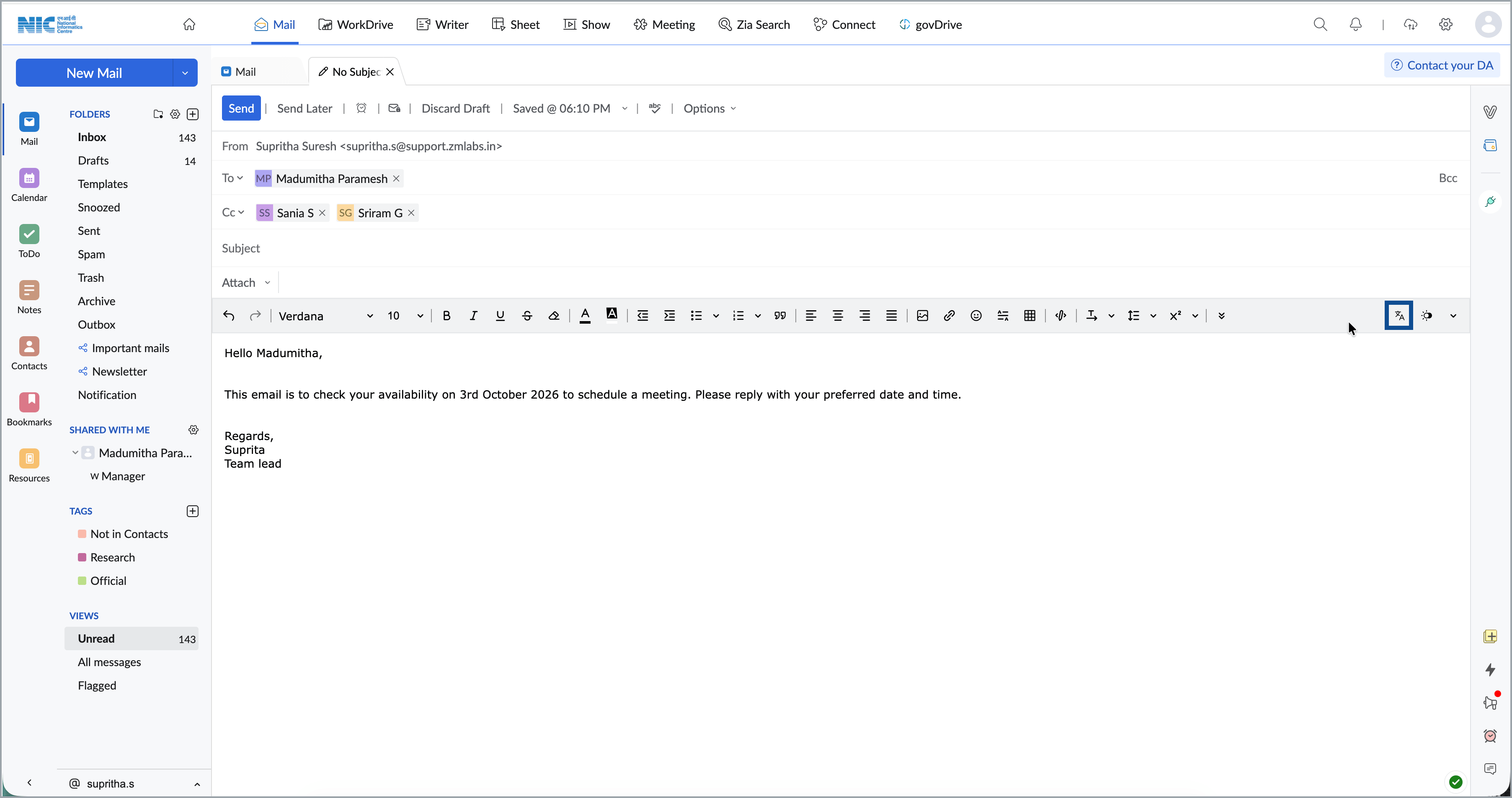
- In the Translate popup, select the language From which you want to translate (From language) on the left and the language you want to translate To ( To language) on the right.
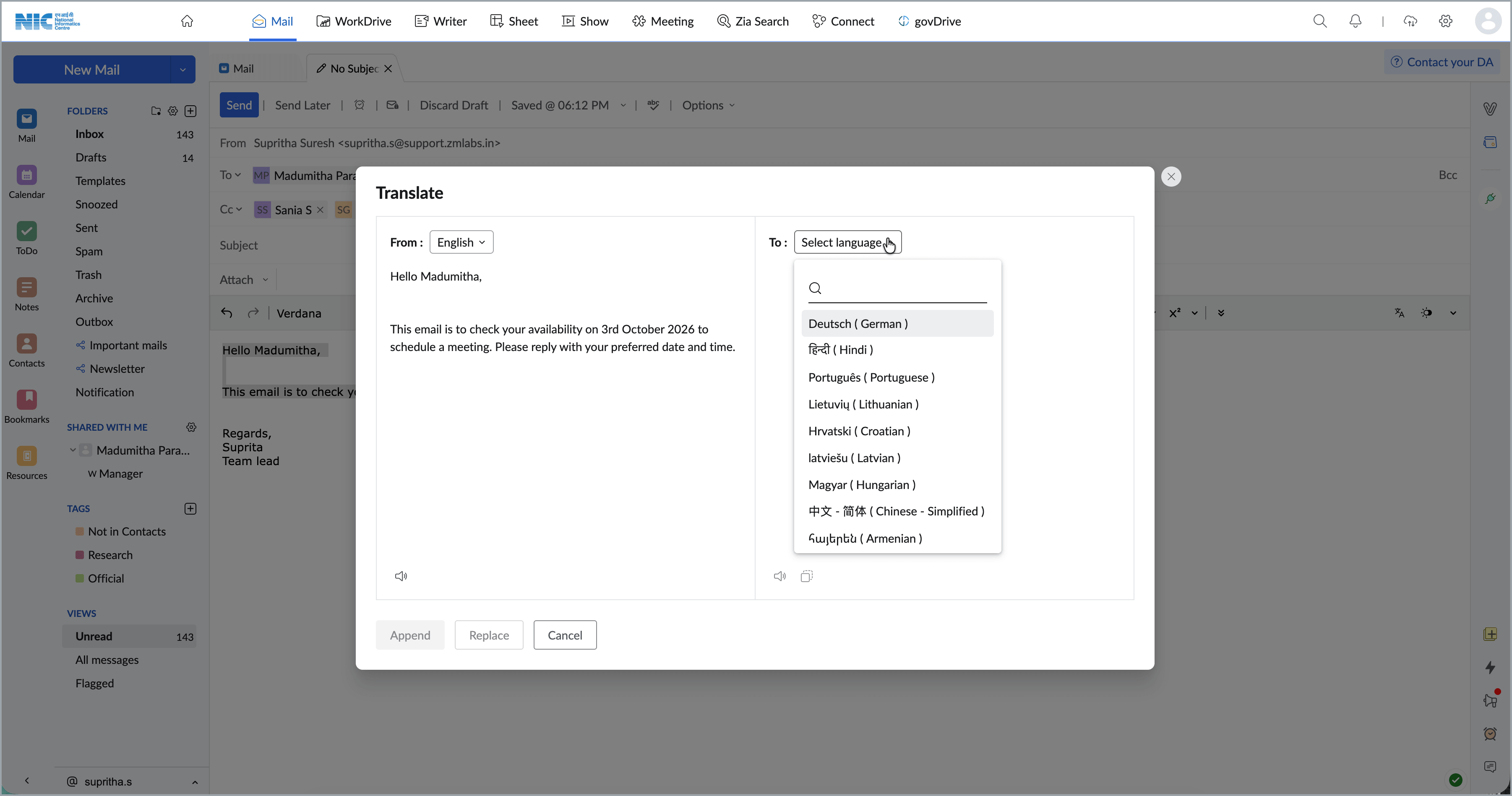
- Use the audio button to hear a narration of the original content and its translation and the copy button to copy the translated content to your clipboard.
- Click the Append button if you'd like to insert the translation below the original content in the composer.
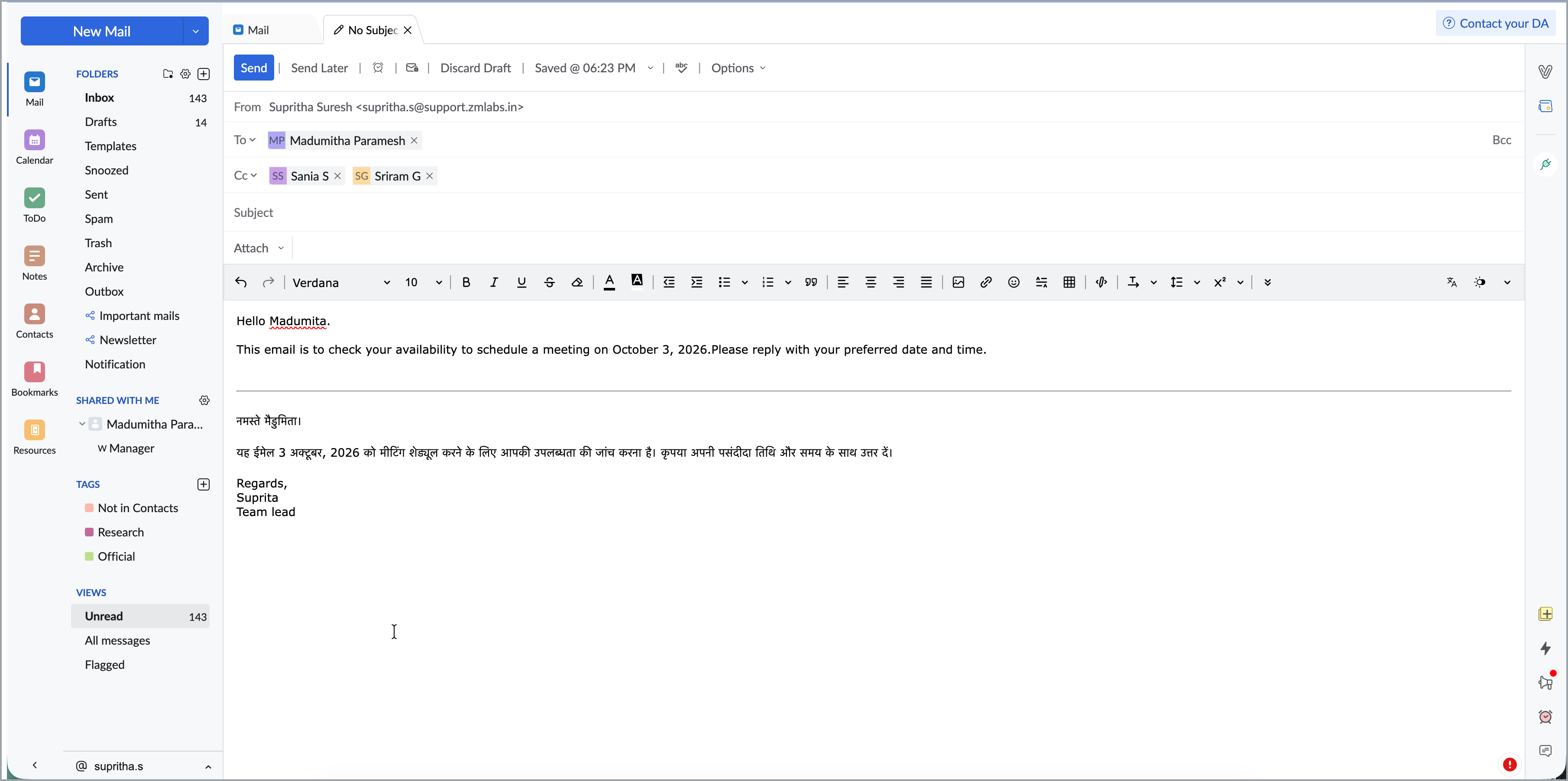
- Click the Replace button if you'd like to replace the original content you've drafted in the composer with the translated content.
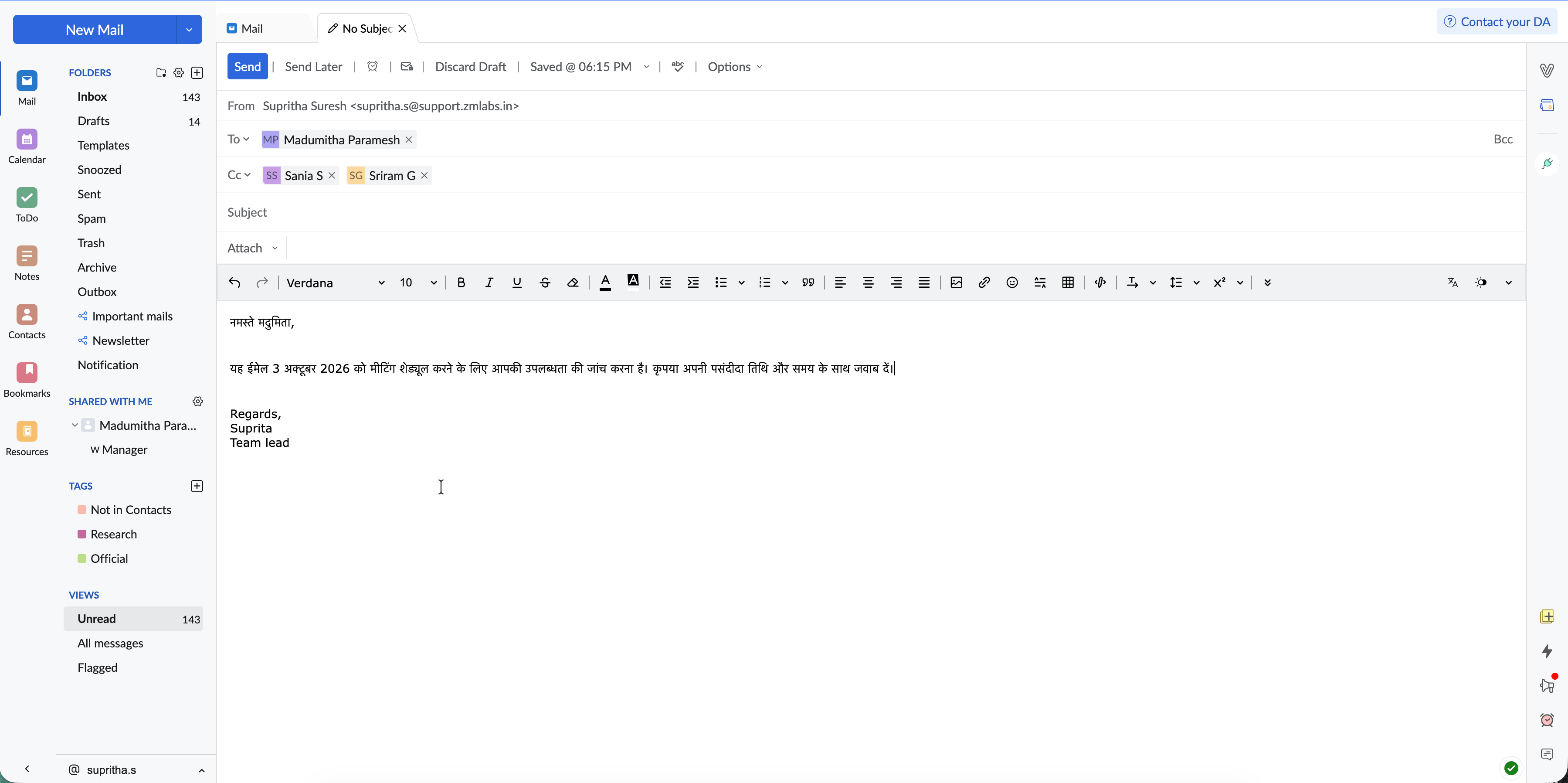
- After finalising the draft, click send.
Note
- The option to translate will become active in the composer only after you enter some content.
- All the content in the composer except signatures and email header (in the case of replies) will be translated. To translate parts of your content, rather than all of it, you must manually select it before clicking the translate button.
- If you've already appended the translation, appending once more will simply update the content rather than adding the translation again below the original content.
- When there's a line separator in your content or when you've manually selected the content, only the replace button will be available. The append button will be unavailable.
Enhanced Spell check and Composer language
NICeMail has an inbuilt enhanced spell checker to correct your spelling and grammar errors on the go. After composing your email, click the Spell check icon from the top bar. The misspelled words or grammar errors in your email content will be highlighted. Click the highlighted words to see a list of possible words with the nearest spelling or alternative words. You can also add a word to your custom dictionary by clicking the Add to dictionary icon so that it doesn't get flagged the next time you spell-check an email.
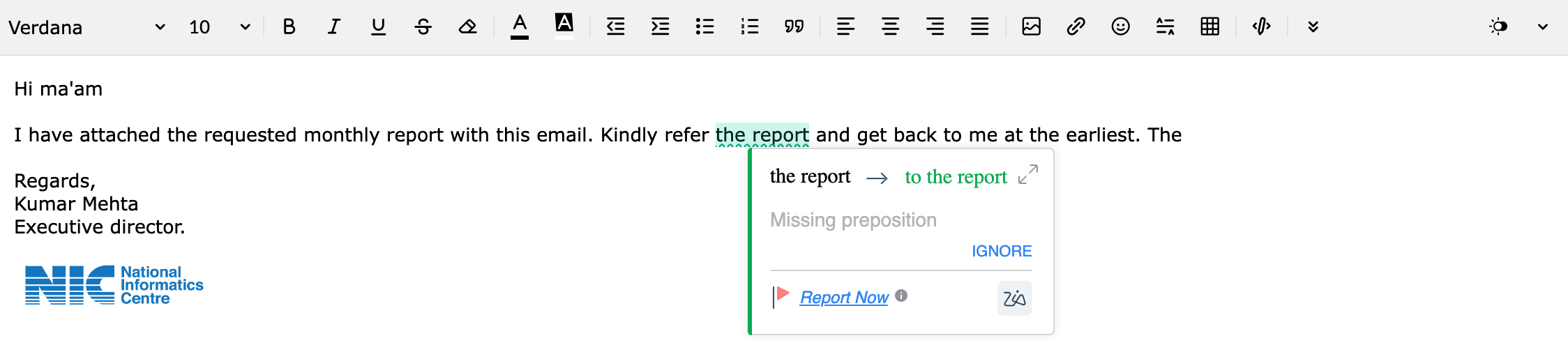
If you click the drop-down next to the Spell check icon, you will be shown a list of languages that you can choose from. This primarily means the language against which your email content will be checked for validation during a spell check. It does not refer to the language you can compose the email in. For example, if you've chosen English (US) from the composer language listing, the email content will be checked with an American English dictionary, and relevant spelling and grammar suggestions will be provided.
The language your email is composed in depends on the keyboard you use, and not on any of NICeMail's settings.
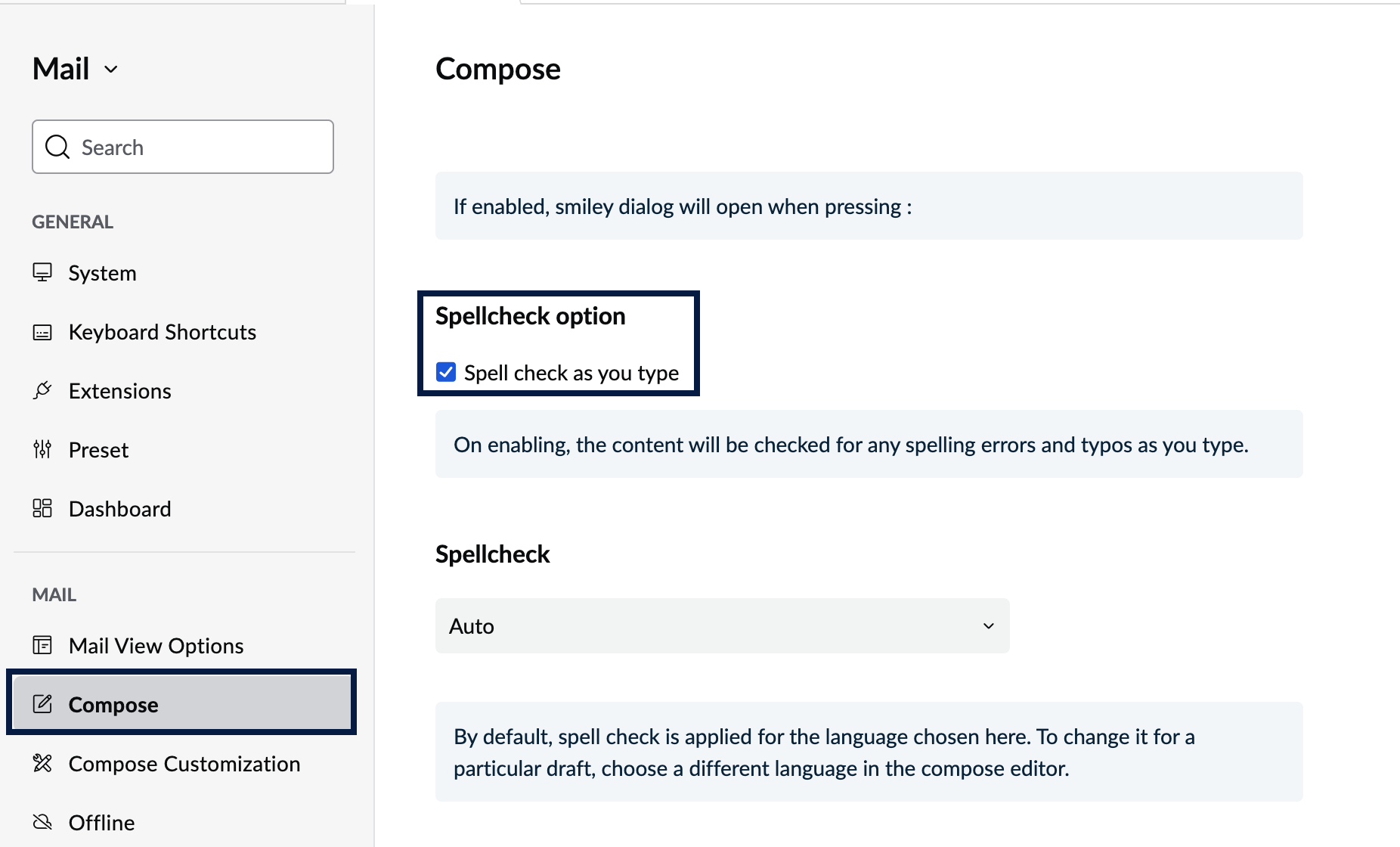
The Auto-spell check option can also be enabled in settings. You can use this to check your spelling as you type. To enable this option, navigate to Settings > Compose > Spellcheck option. Select the Spellcheck as you type check-box.
More email sending options
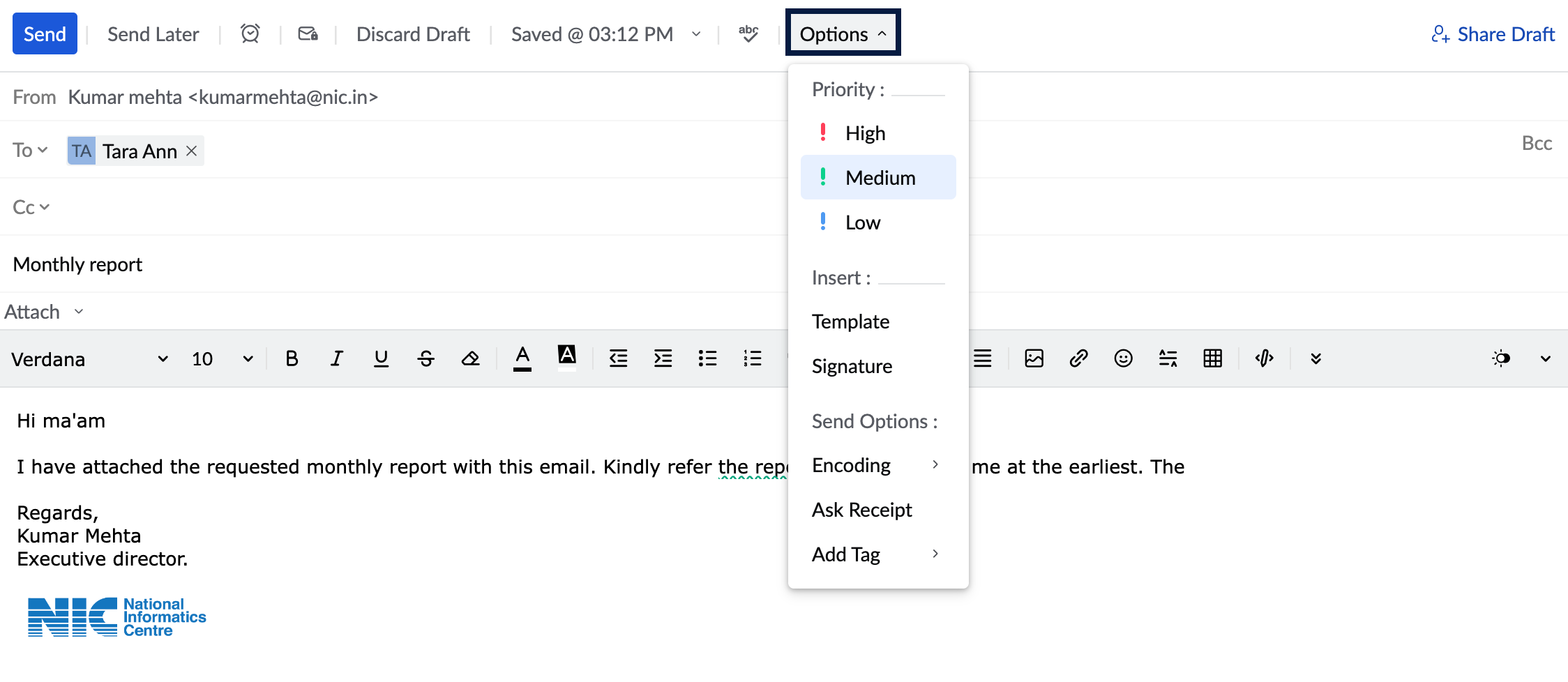
While composing an email you can also set certain preferences in the compose window before you send the email. You can set the priority for the email, insert a signature/template, change the encoding format, and ask for read receipts from the recipient end.
Priority
You can set the email priority to High/Medium/Low. This will help the recipient classify those emails that need to be attended to immediately, and prioritize them accordingly. In the Compose window, click the Options icon on the top of the window and choose the required priority from the listing.
| High |
| Medium |
| Low |


Insert Template/Signature
You might have some saved templates that might be necessary from time to time. You can insert such templates or one of your signatures directly from the compose window. Click the Options icon at the top of the compose window. The templates/signatures you've added to your account will be listed. Choose the required option and it will be added to the email that you're composing.
Encoding
You have multiple email encoding options in NICeMail. If you want a specific email to be sent with a different encoding, you can choose the required option from the Options menu. This will be applied only to the current email. The encoding format selected in the Settings will only be applied to the other emails.
Ask Receipt
When you send certain emails, you might need an acknowledgment to know whether the recipient has read the email. In such cases, you can use the Ask Receipt feature. In the Options menu, select Ask Receipt.
Based on the recipient's Read Receipt settings, you will be notified whether the email has been read or not.
If the recipient sends a read receipt, a new conversation gets created in the relevant email. Click the Preview whole conversation icon to view the time at which your email was read.

You can choose the default behavior for the email which requests you for a 'Read Receipt' by following the below steps.
- Log in to https://mail.gov.in/
- Click the Settingsicon.
- Go to Mail View Options.
- Locate Read Receipt.
- Select Always Send to always send a Read Receipt acknowledgment to the sender.
- Select Never Send to never send a Read Receipt acknowledgment to the sender.
- Select Ask me to ask for confirmation before sending a Read Receipt acknowledgment to the sender.
Add Tag
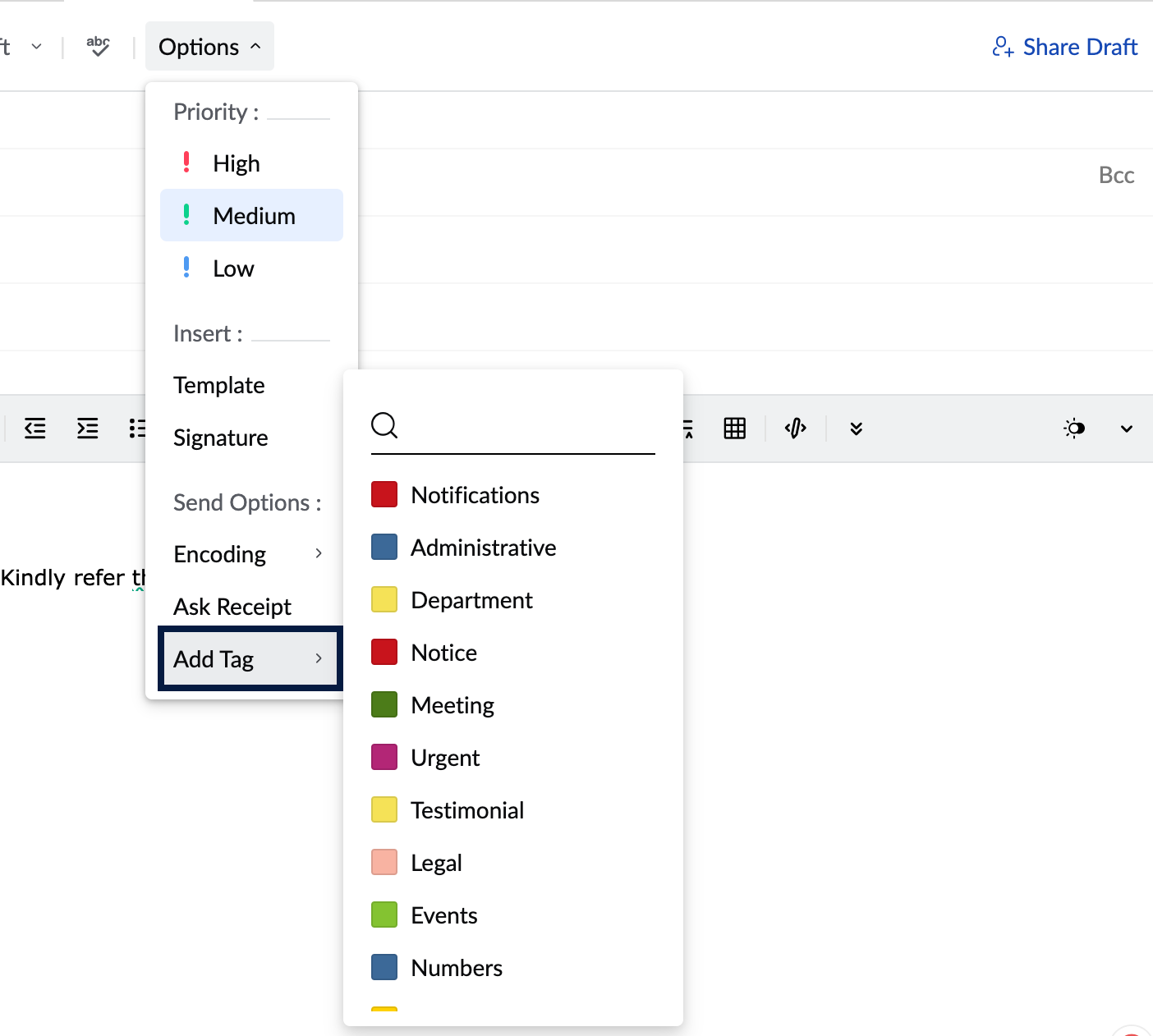
You can add tags to the email you compose and the chosen tags will be added to the email once you send it. You can access the emails based on the particular tag by navigating to the Tags section on the left menu and choosing the tag from the listing.
To add tags, click on the More options icon on top of the email composer. Choose the Add tag option from the menu and select the tags you want to add to the email.
Include Attachments
This option will only be available in the More Options list if you are replying to an email. By selecting this option, you can include the attachments from the original email in your email.
Note:
You can set more preferences for your email composer from the Compose Settings page.
Compose Settings
Editor Mode
The Rich Text editor is enabled by default to all in NICeMail. You can change the editor mode from in the Compose settings.
Go to Settings >> Compose >> Editor Mode and select your preferred editor mode.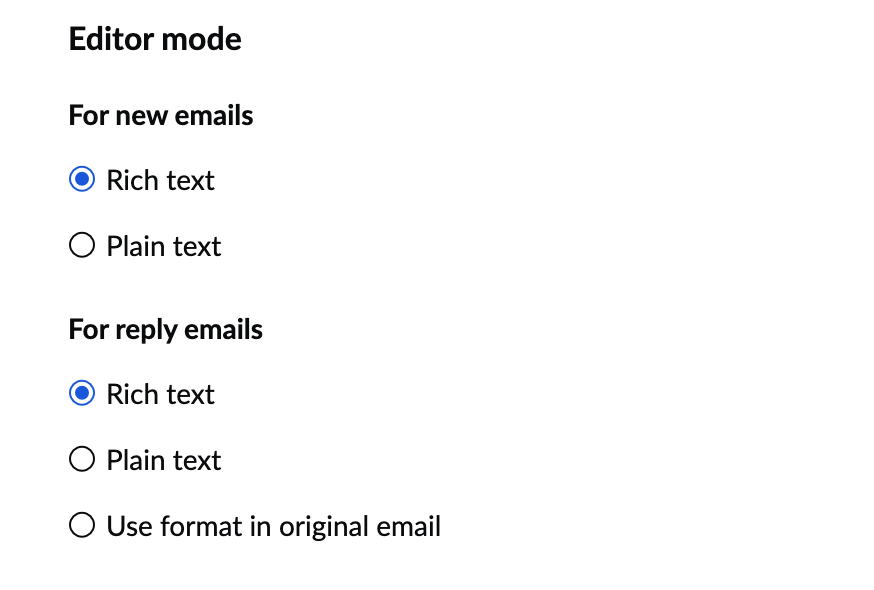
Please note that while you have chosen your preferred editor mode in the Compose Settings, you will still have the option to choose the other mode for individual emails using the drop-down box in the Mail Composer.
Text direction
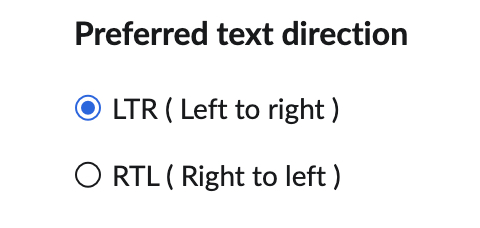
You can choose your preferred direction of text input from your compose settings in NICeMail. By default, the text is entered in the left to right direction. However, you can change this in Settings >> Compose >> Preferred text direction >> Right to left.
Undo Send
You can undo sending an email by enabling the Undo Send setting
- Log in to https://mail.gov.in/
- Click the Settingsicon.
- Go to Compose.
- Under Undo Send, set the duration for which you want the Undo option to be displayed after sending an email.
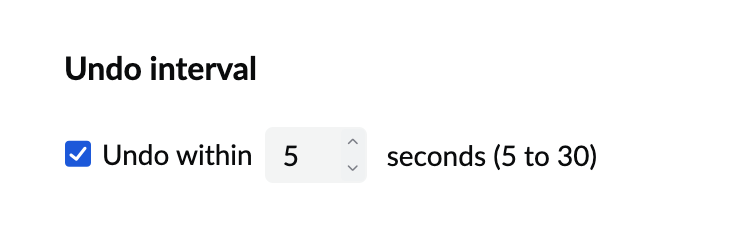
Once the setting is enabled, you will be able to view the Undo Send option while sending emails. On clicking send on an email, you will be able to view the Undo Send option as a banner for the selected duration. Once you click on Undo in the banner, the email will not be sent. This email will be saved as a draft for you to edit and resend if required.
Edit as new
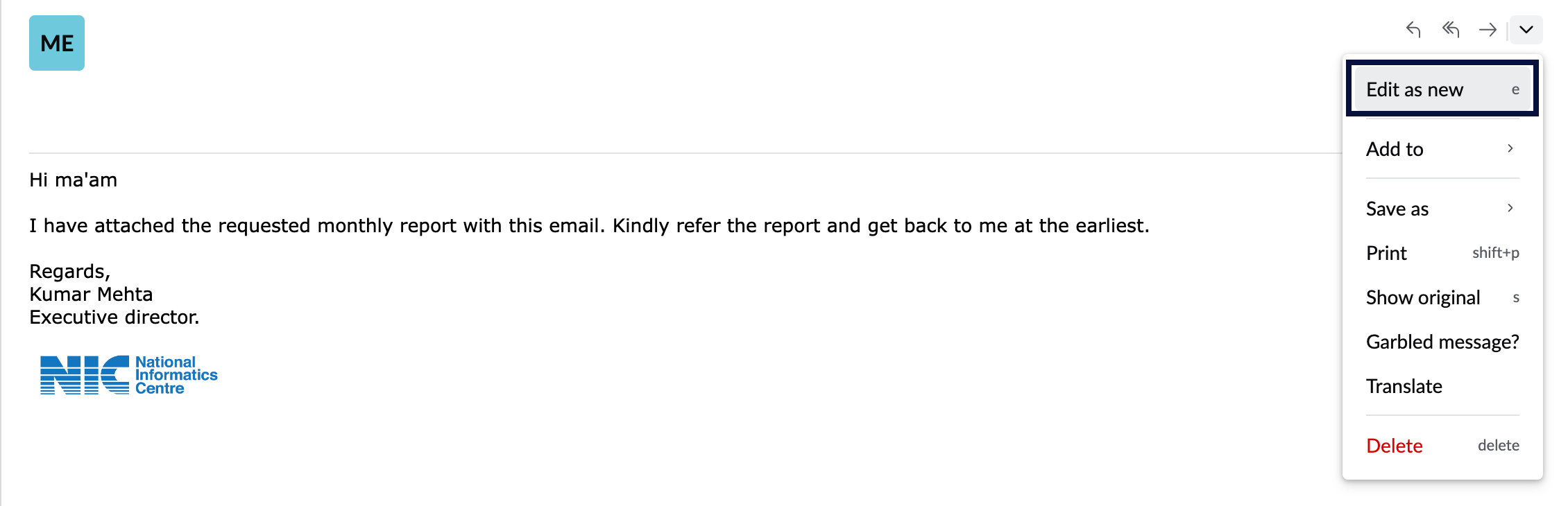
In certain circumstances you might want to send an email to two or more recipients, but with certain changes in the email content. In such cases, you can make use of the Edit as new option. Open the email that you'd like to send to a new recipient with edits, click the More option icon, and select Edit as new from the listing. The same email will open in the email composer window. You can now make the essential edits and send the email.
Autofill/ Address Book in Compose
Autofill Contacts
When you compose an email, if you start typing the recipient name/ email address in To/ Cc/ Bcc fields, all the matching contacts will be listed in the Autofill dropdown. You can choose the corresponding contacts from the list.
Similarly, if you start typing any particular category name, you can select from among the matching categories that are listed in the Autofill drop-down. All the contacts associated with that category will be automatically added as recipients.
Address Book
Adding recipient in Compose
Further, to view and select the contacts from the Address book, click the To/ Cc/ Bcc links in the respective fields. The 'Address Book' pops up with your contact details. You can directly select from the listed contacts, or use the 'Search contact' option to search and select the corresponding recipients from the address book. Click the relevant contacts, to add them as recipients.
Using the drop-down on the left top corner of the 'Address book', you can choose to view "All Contacts" or the contacts associated with any of the Personal or Organization Contacts category. You can select the desired contacts from the chosen list or use the 'Select All' checkbox to add all the contacts in that category as recipients.
The selected contacts will be displayed below the address book. You can remove them from here if needed. Finally, select the Insert option to insert the selected contacts in the corresponding field.
Contact Suggestions
Contact Suggestions are prompted when the same set of recipients are repeated in multiple emails. If you add more than two recipients in the 'TO' field of an outgoing email, the next time you compose an email with any two of those contacts, a contact suggestion bar will appear. This bar lists the contacts that are often emailed alongside the entered contacts. You can click on the individual contacts to add them as recipients or click on the Add All option to include all the suggestions as recipients.
Creating Category
You can create Contact Categories directly from the address book. This way you can easily add a group of contacts as recipients.
- Open the Address book from the Compose window.
- Select one or more contacts from your listing.
- Click on the Create category option that appears above the selected list.
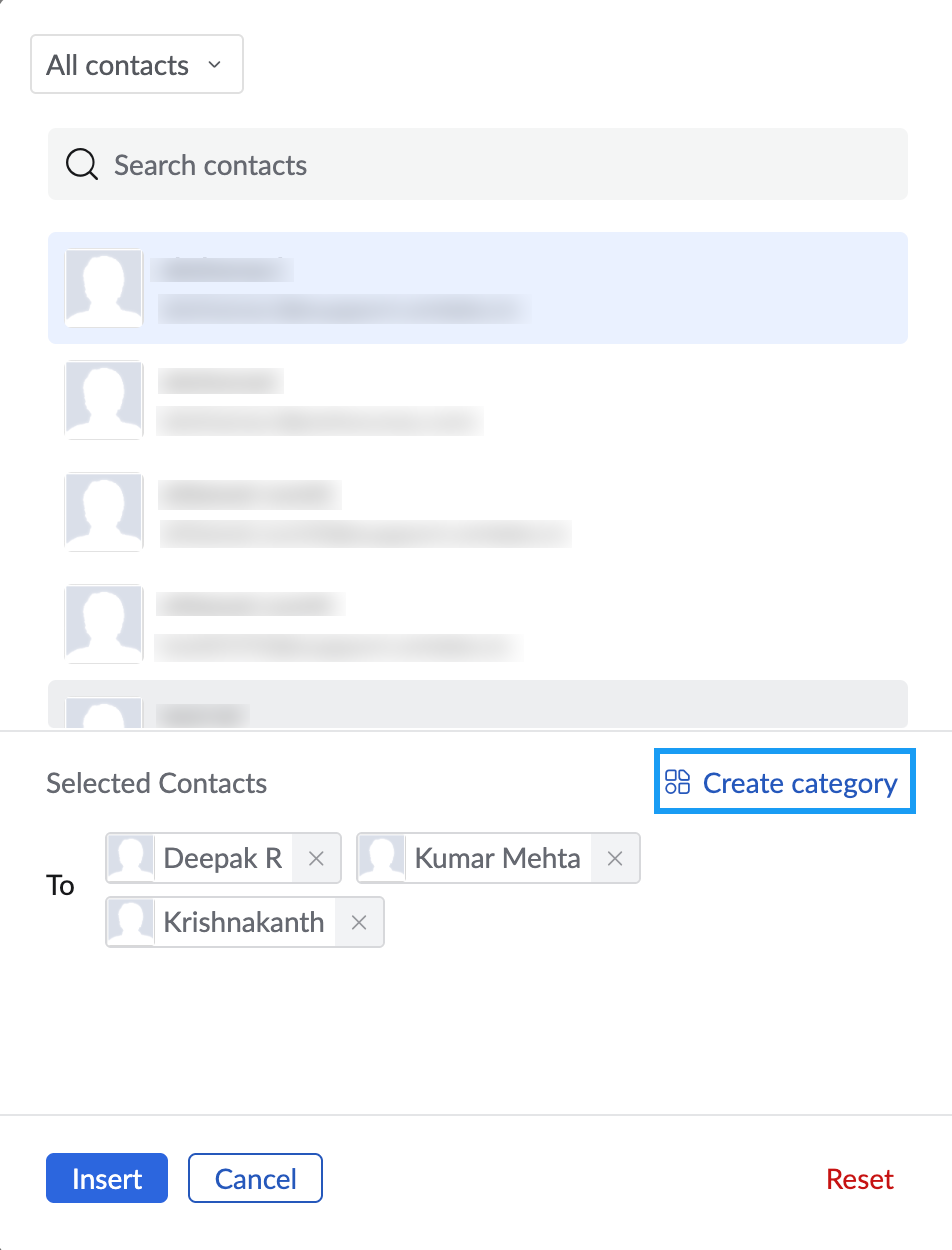
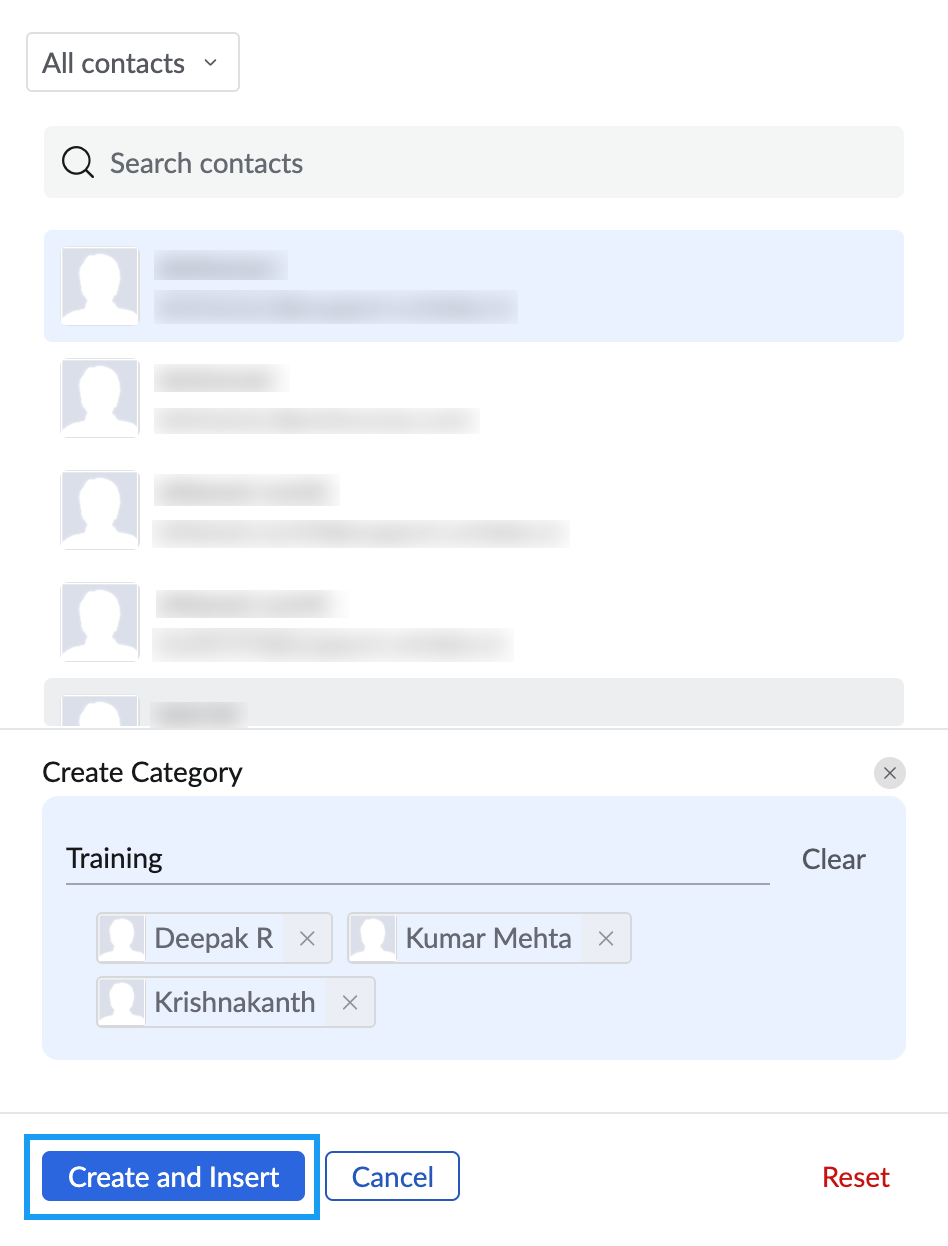
- Enter the desired name for the category and click on the Create and Insert. A contact category with the entered details is now created.
@mention Contacts
When you compose an email, directly @mention the users in the content of the email, to automatically add them to the recipient list. You can either compose a new email or you can @mention the users in the replies or forwards to automatically add them to the list of recipients.
Empty Sent
To delete all the emails or the specific emails you want to from your Sent folder,
- Right-click on the Sent folder and select Empty Sent.
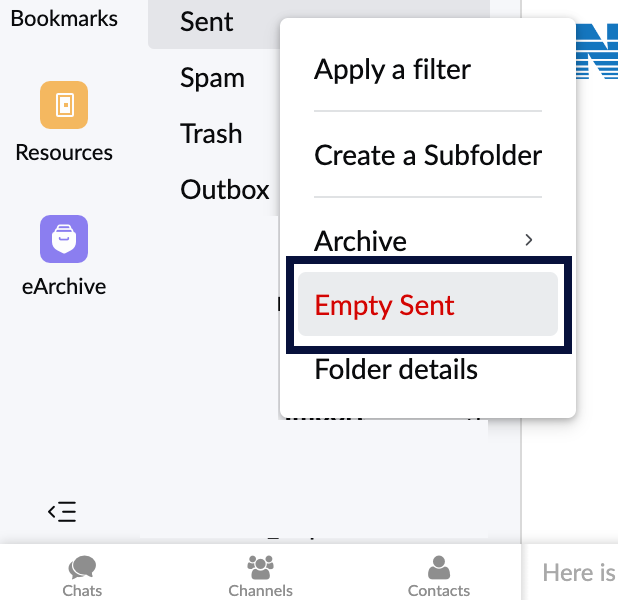
- A pop-up window with the delete options will open. You can choose to,
- Delete all messages in the folder
- Delete messages that were sent up to a particular date
- Delete all messages except a certain number of recently sent emails
- You can also choose to Include archived emails during deletion option if you want to include the emails you archived from the sent folder.
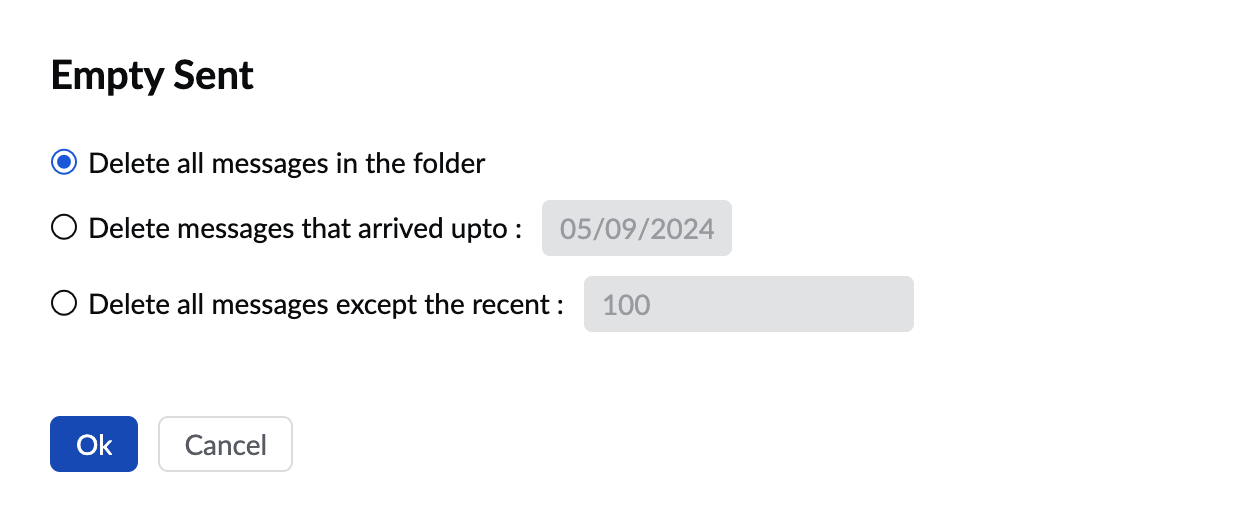
- After selecting the option of your preference, click Ok.
Composing Emails Using Mobile Applications
- Android
- IOS
Composing Emails in Gov Mail (Android)
A. Composing a New Email
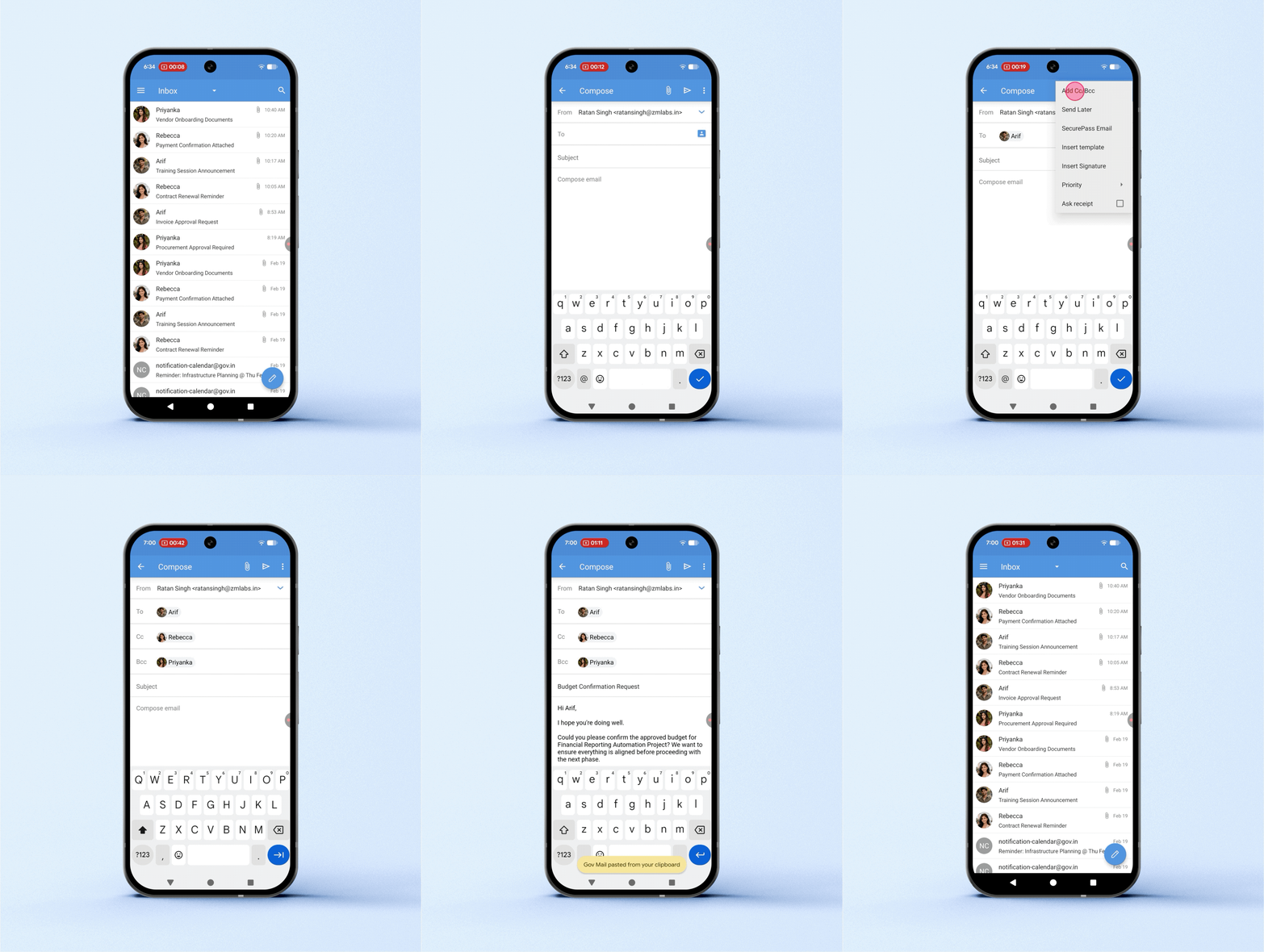
To compose an email:
- In the Email module, tap the Compose icon at the bottom-right corner of the screen.
- Tap New Mail.
- Fill in the required email fields, such as To, Cc, and Bcc. You can either type in the email addresses or choose the desired recipient from the contacts list.
- Draft the subject and the email body.
- Tap the Send icon.
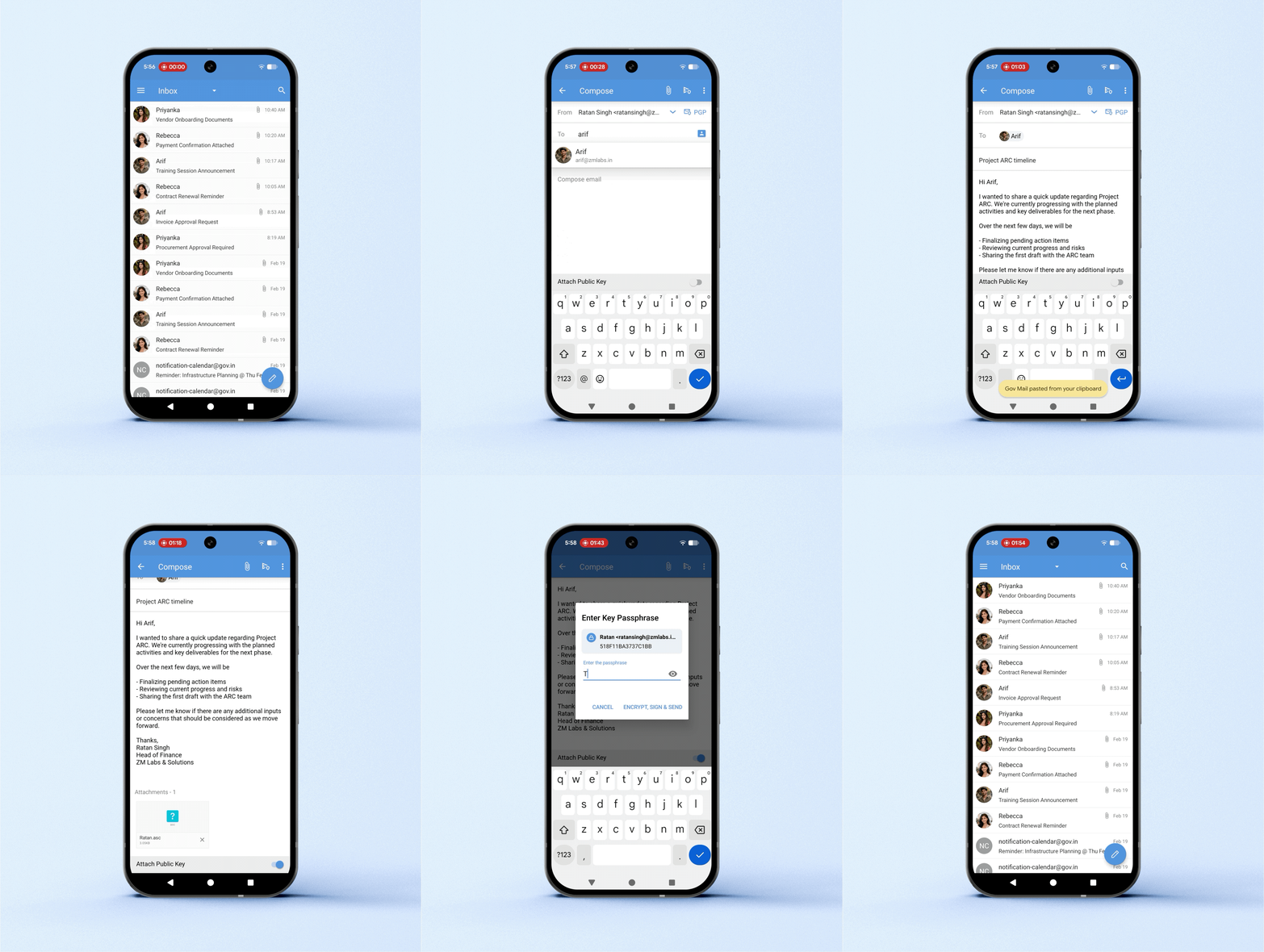
To compose a PGP encrypted emails:
- In the Email module, tap the Compose icon at the bottom-right corner of the screen.
- Tap New Secure Mail.
- Provide the email address of the PGP user in the To, Cc, and Bcc field. You can either type in the email addresses or choose the desired recipient from the contacts list.
- Draft the subject and the email body.
- Enable Attach Public Key to attach your public key to the encrypted email you send. This will help the recipients to import and save your public key to their email client enabling them to send you encrypted emails.
- Tap the Send icon and choose between Encrypt, Sign & Send, Encrypt & Send, or Sign and Send.
Note
- To save an email draft, tap the Back icon, and choose Save in the Save Draft alert that appears.
- Users must configure the PGP encryption in Zoho Mail web Settings to begin sending and receiving PGP-encrypted emails.
- To send and receive emails encrypted using PGP, both the sender and receiver should have access to the public keys of each other.
- To encrypt the email provide the passphrase to digitally sign the email using the private key associated with your email address.
- Then, tap OK. PGP encrypted emails are differentiated with a PGP encryption icon in the Mail Composer.
B. Adding Media to Email
While composing an email, you can add signatures, templates, images, and attachments.
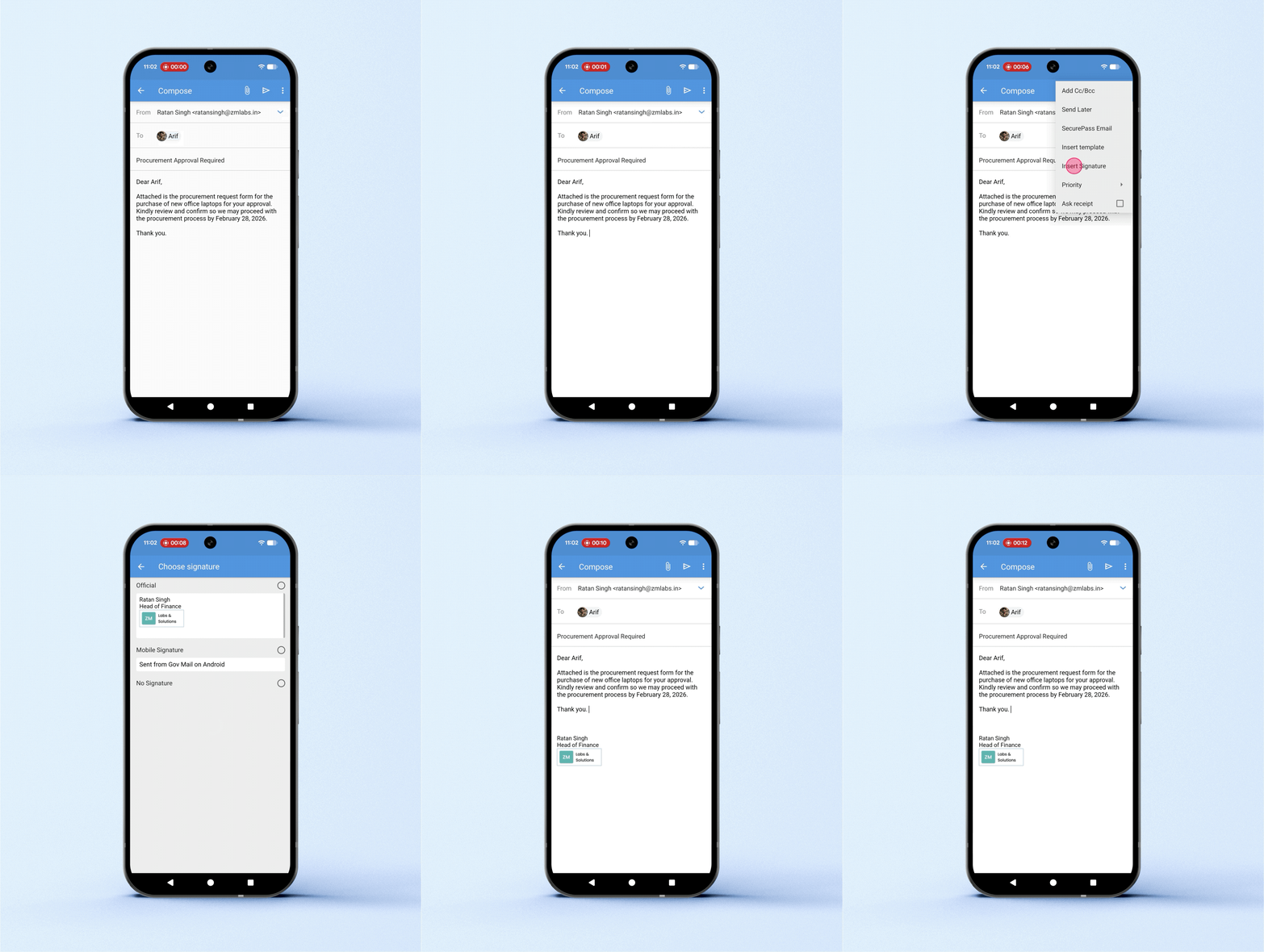
Adding Signatures
To add a signature to your email:
- Tap the More Options icon.
- Tap Insert Signature.
- Choose the desired signature.
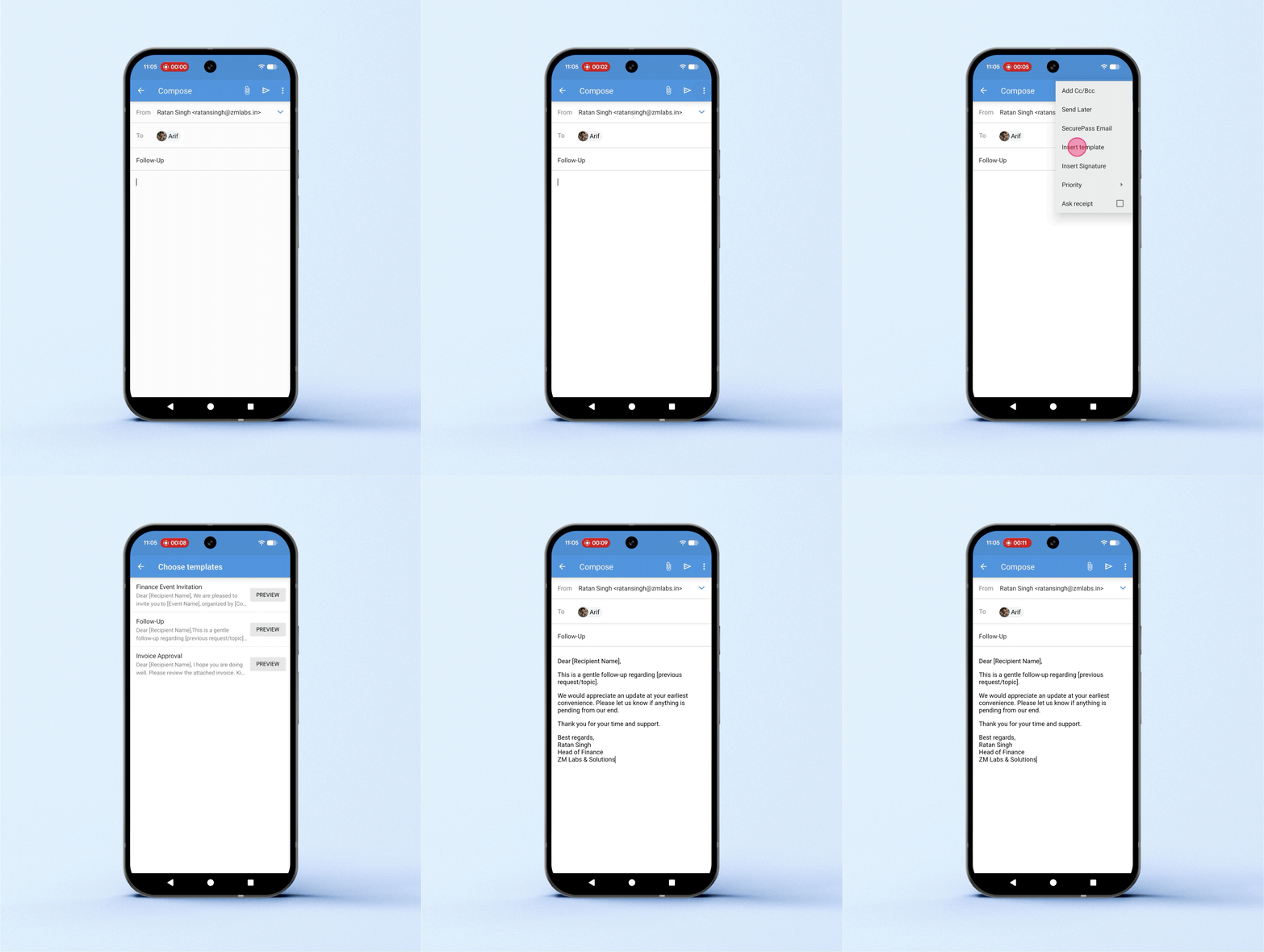
Adding Templates
To add a templated message to your email:
- Tap the More Options icon.
- Tap Insert Template.
- Choose the desired template.
Note
To preview a template before inserting it into the Mail Composer, tap PREVIEW, then tap Choose.
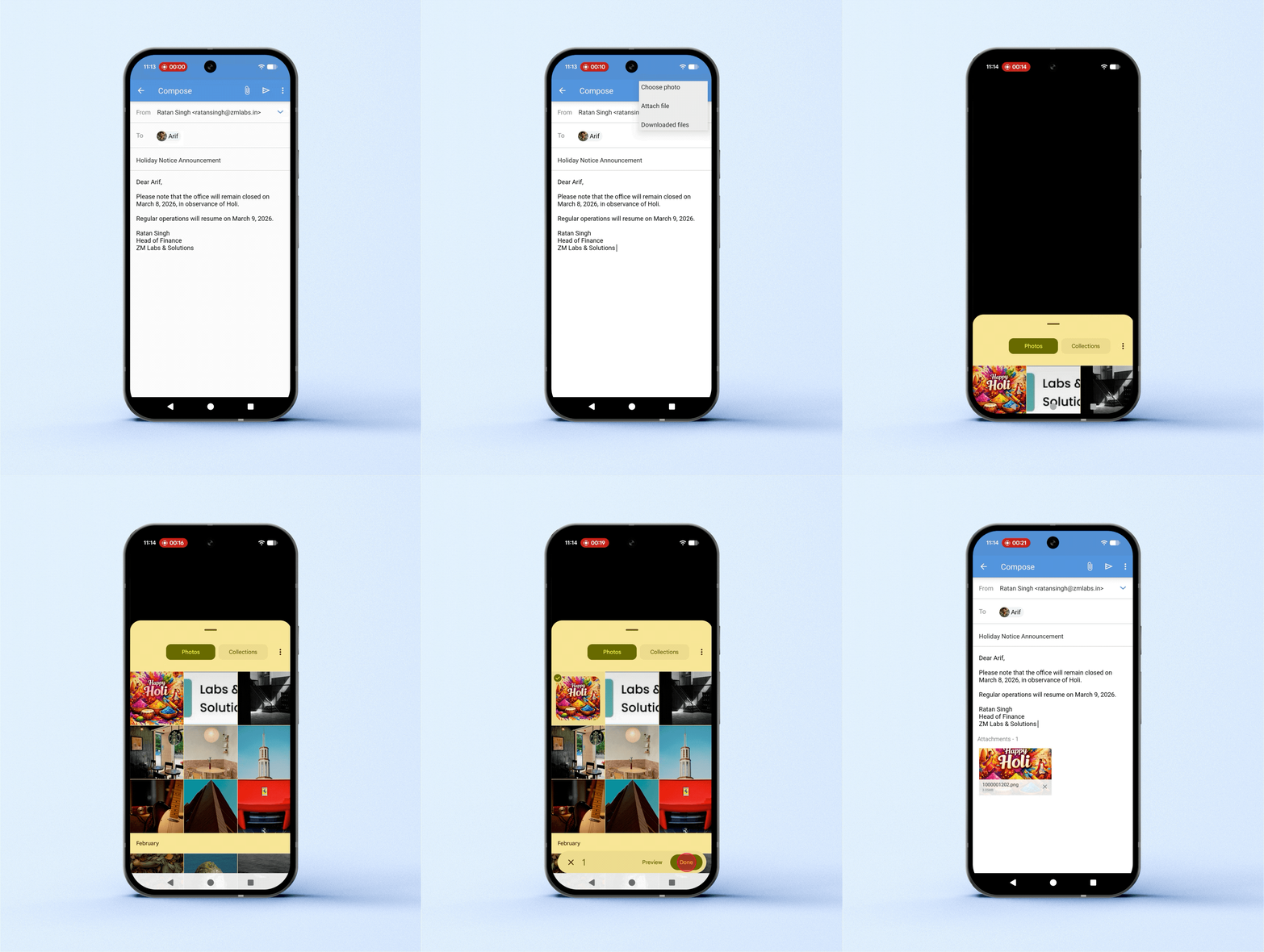
Adding Attachments
To add an attachment to your email:
- Tap the Attachment icon.
- Choose whether you want to add the attachment from the gallery or files.
Note
You can attach photos from your gallery, files from your device, or files that have been downloaded within the Gov Mail mobile app.
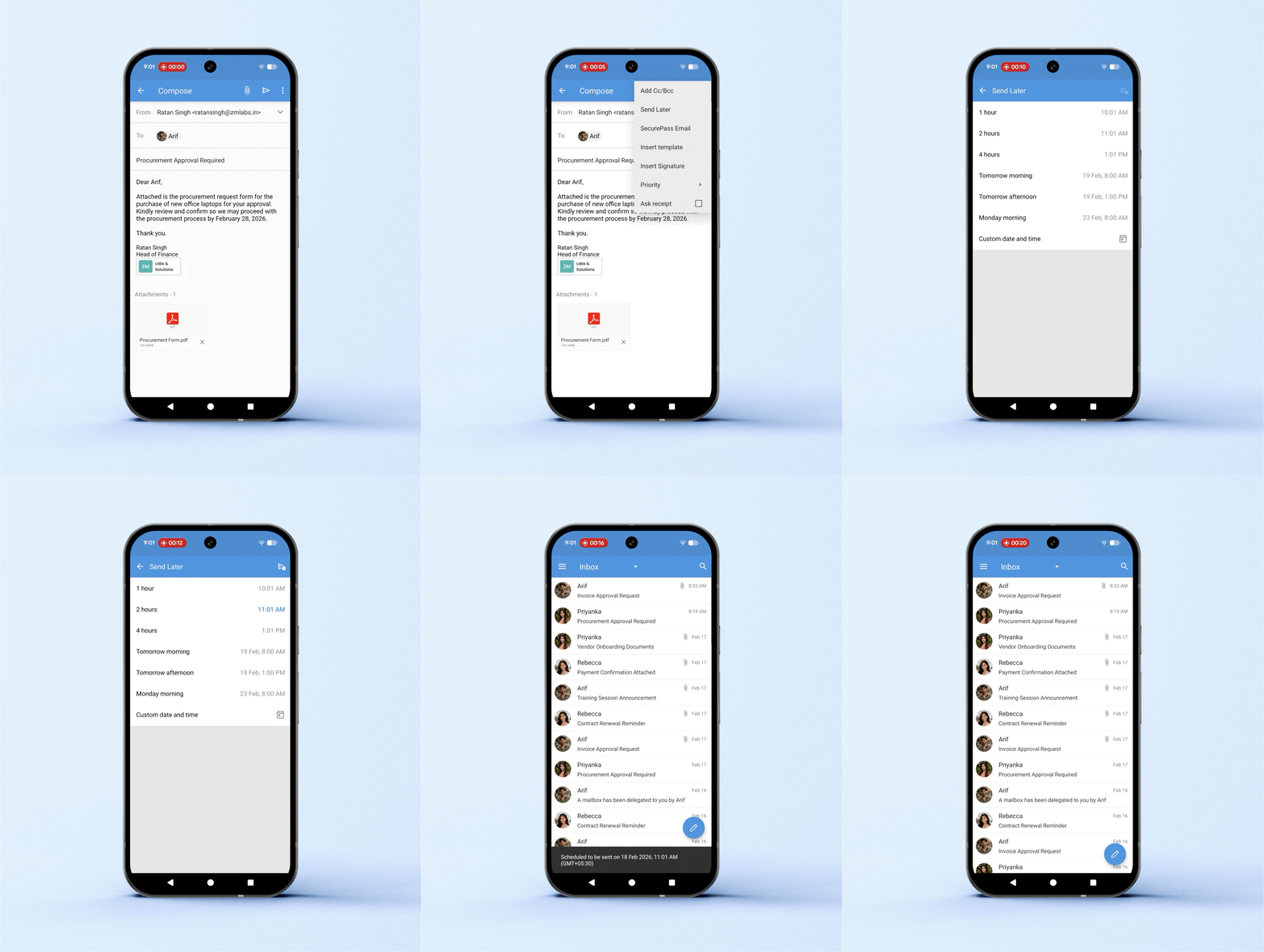
C. Scheduling Emails to Send Later
The Schedule option enables you to schedule your email to be sent at a later time. To do so:
- Tap the More Options icon.
- Tap Send Later.
- Pick the desired time and date and tap the Send icon.
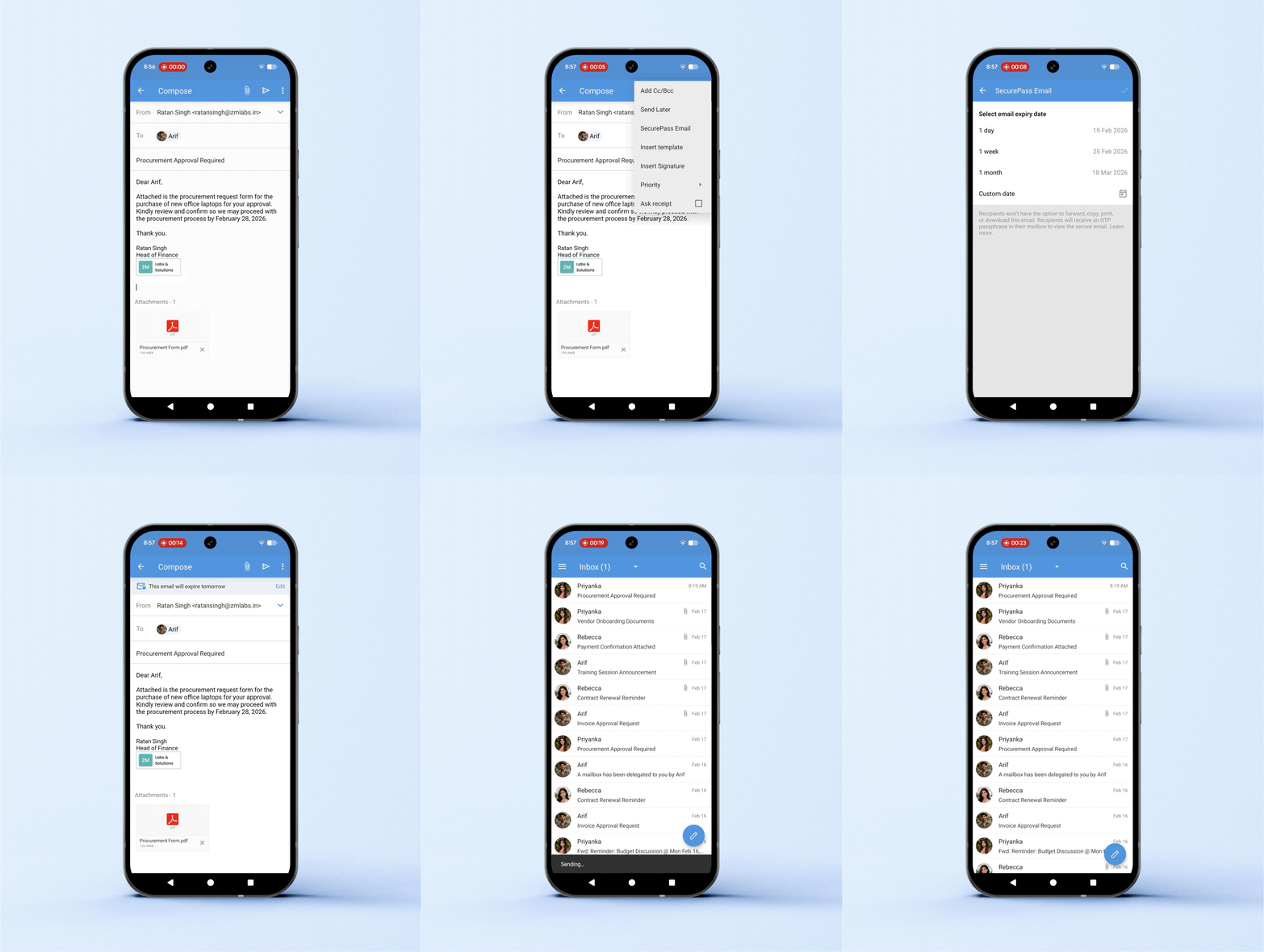
D. Adding SecurePass
You can secure your email with the SecurePass feature. This will ensure that the recipient of this email cannot forward, copy, print, or download the email. To secure your email:
- Tap the More Options icon.
- Tap SecurePass.
- Choose the email expiration date.
E. Asking for Read Receipts
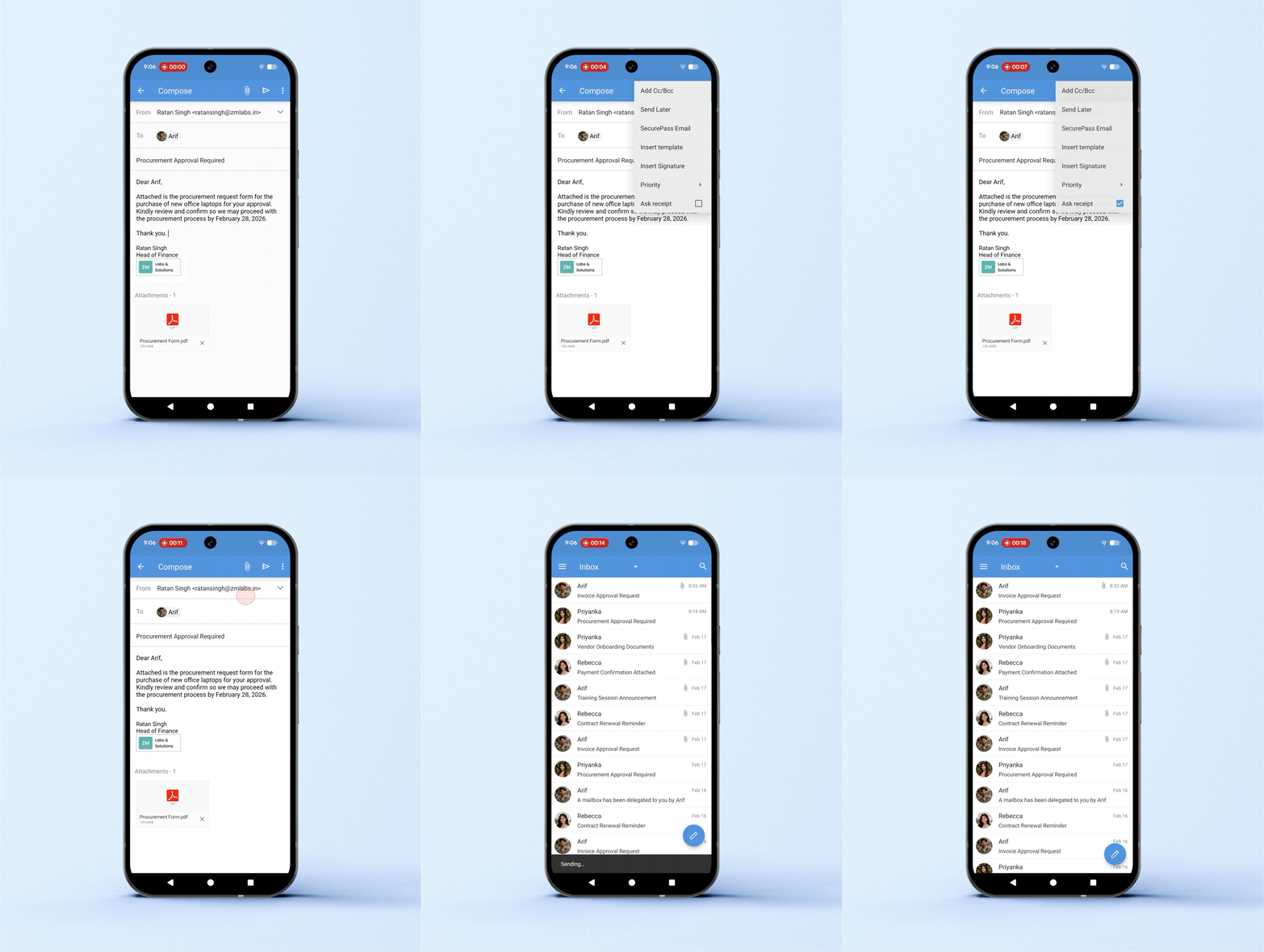
You can ask for a read receipt while sending emails that require the recipient to acknowledge that they have read the email. To do so:
- Tap the More Options icon.
- Tap Ask Receipt.
F. Setting Email Priority
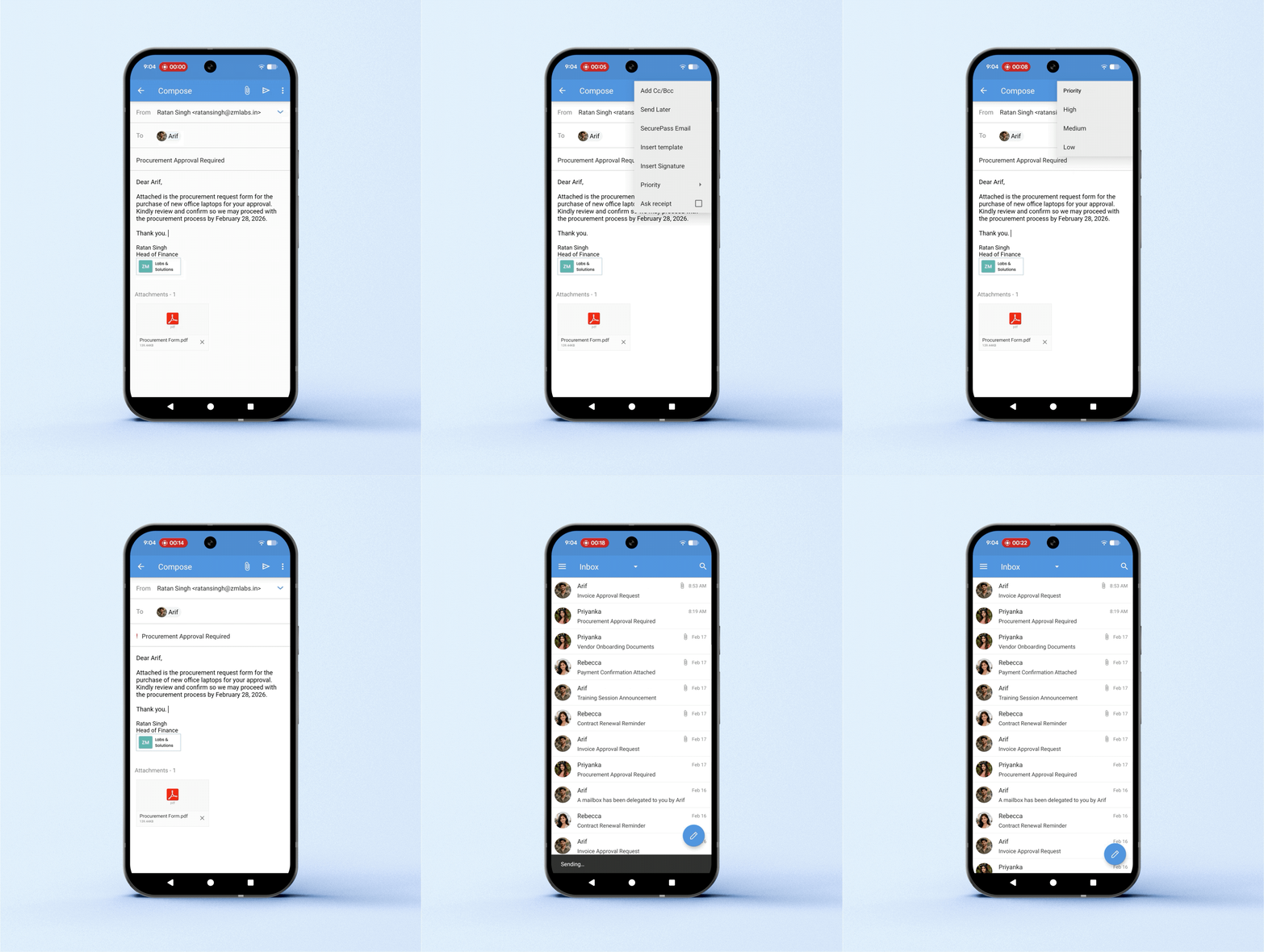
While crafting your email, you can set its priority to High/Medium/Low. This will help the recipient prioritize those emails that need to be attended to immediately. To set email priority:
- Tap the More Options icon.
- Tap Priority.
- Choose between High, Medium, and Low.
G. Switching From Address
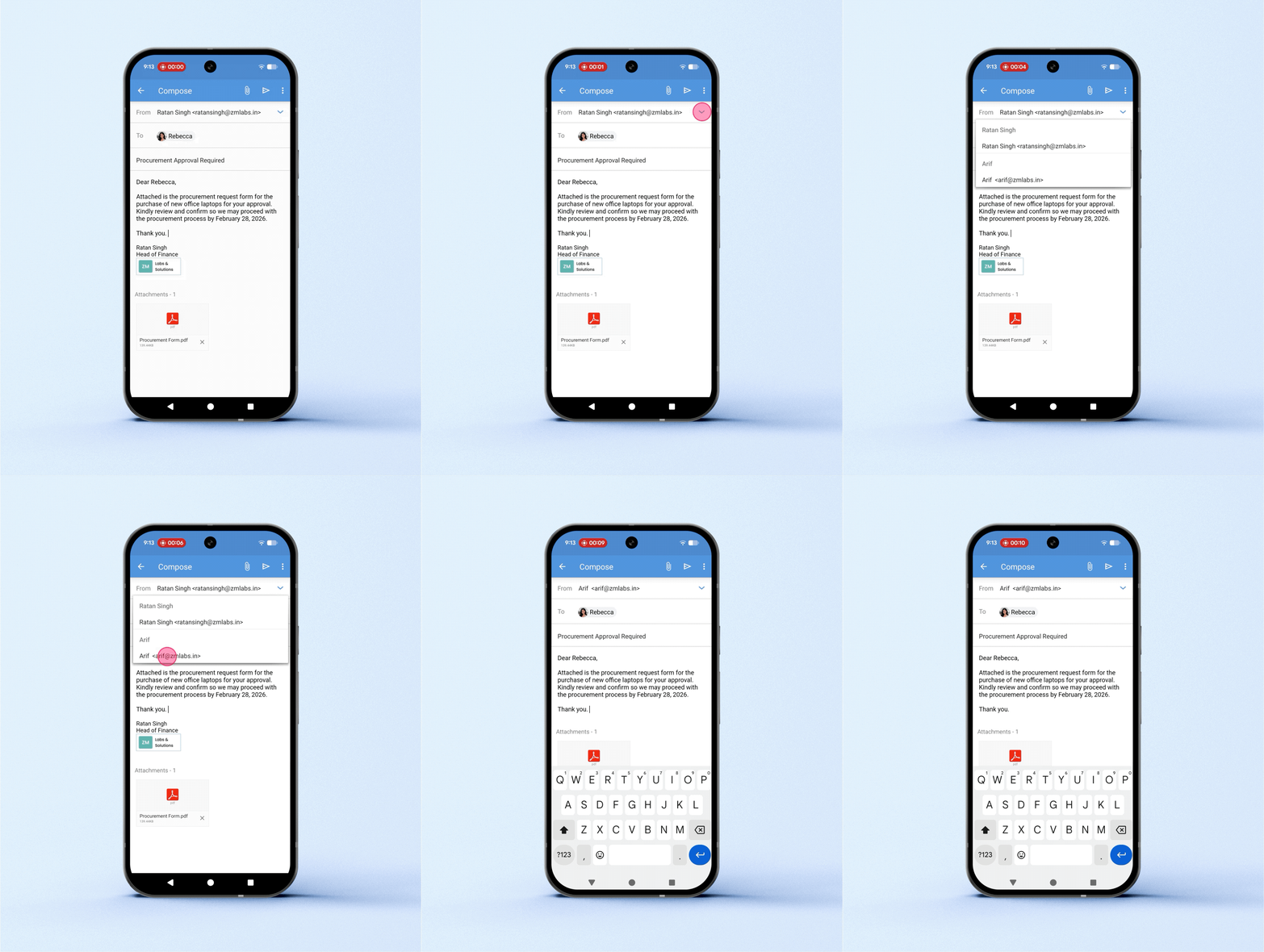
While composing an email, you can switch the From address. This allows you to send emails from the appropriate account. To switch from addresses:
- Tap the email address or the down arrow in the From address field.
- Tap the email address you want to send the email from.
Composing Emails in Zoho Mail (iOS)
A. Composing a New Email
To compose an email:
- In the Email module, tap the Compose icon at the bottom-right corner of the screen.
- Fill in the required email fields, such as To, Cc, and Bcc. You can either type in the email addresses or choose the desired recipient from the contacts list.
- Draft the subject and the email body.
- Tap the Send icon.
Note
To save an email draft, tap the Close icon, then choose Save Draft. To save the draft as a template, tap the More Options icon and choose Save Template.
B. Adding Media to Email
While composing an email, you can add signatures, templates, images, and attachments.
Adding Signatures
To add a signature to your email:
- Tap the Signature icon.
- Choose the desired signature.
Note
Tap Remove Signature to remove it from the email
Adding Templates
To add a templated message to your email:
- Tap the Template icon and choose the desired template by tapping on it.
- To preview the template, tap View, and then tap Choose to insert it in the Mail Composer.
Adding Images
To add an image to your email:
- Tap the Image icon.
- Choose the desired image from the Photo Library.
Adding Attachments
To add an attachment to your email:
- Tap the Attachment icon.
- Choose whether you want to add the attachment from the Photo Library or Files. You can also scribble and send it as an attachment, scan a document, or browse through the list of all email attachments.
C. Scheduling Emails to Send Later
The Schedule option enables you to schedule your email to be sent at a later time. To do so:
- Tap the More Options icon.
- Tap Schedule.
- Pick the desired time and date and tap the Send icon.
D. Sending Recurring Emails
You can schedule recurring emails that are regularly sent at a pre-defined interval. To do so:
- Tap the More Options icon.
- Tap Recurring.
- Set the recurrence pattern and tap the Send icon.
E. Adding SecurePass
You can secure your email with the SecurePass feature. This will ensure that the recipient of this email cannot forward, copy, print, or download the email. To secure your email:
- Tap the More Options icon.
- Tap SecurePass.
- Choose the email expiration date.
F. Asking for Read Receipts
You can ask for a read receipt while sending emails that require the recipient to acknowledge that they have read the email. To do so:
- Tap the More Options icon.
- Tap Ask Receipt.
G. Setting Email Priority
While crafting your email, you can set its priority to High/Medium/Low. This will help the recipient prioritize those emails that need to be attended to immediately. To set email priority:
- Tap the More Options icon.
- Tap Set Priority.
- Choose between High, Medium, and Low.
H. Switching From Address
While composing an email, you can switch the From address. This allows you to send emails from the appropriate account. To switch from addresses:
- Tap the email address or the down arrow in the From address field.
- Tap the email address you want to send the email from.