Signatures
Signatures in emails are generally important as they render professionalism to the emails and also let the recipients know about your organization, your position, and so on. You can add your job title, organization details, and contact details. You can even insert your organization logo as an image in your signature.
NICeMail supports having multiple signatures and customizes them according to the email addresses used. You can create and use Rich Text Signatures in NICeMail. Further, you can insert formatted HTML in the Signature using the Insert HTML option in the editor.
Note: Ensure that the signature complies with your organization's email policy to reduce the risk of policy violations.
Creating and Adding Signatures
- Login to https://mail.gov.in/
- Click the Settings icon.
- Go to Signatures.
- Click the + icon to create a new signature.
- The Add Signature popup appears.
- Provide a Name for the signature
- Enter the details of the signature and format it to suit your preference.
- You can insert images (like logos) to your signature, paste copied images, and also hyperlink them if required. Refer here for instructions.
- Click Save.
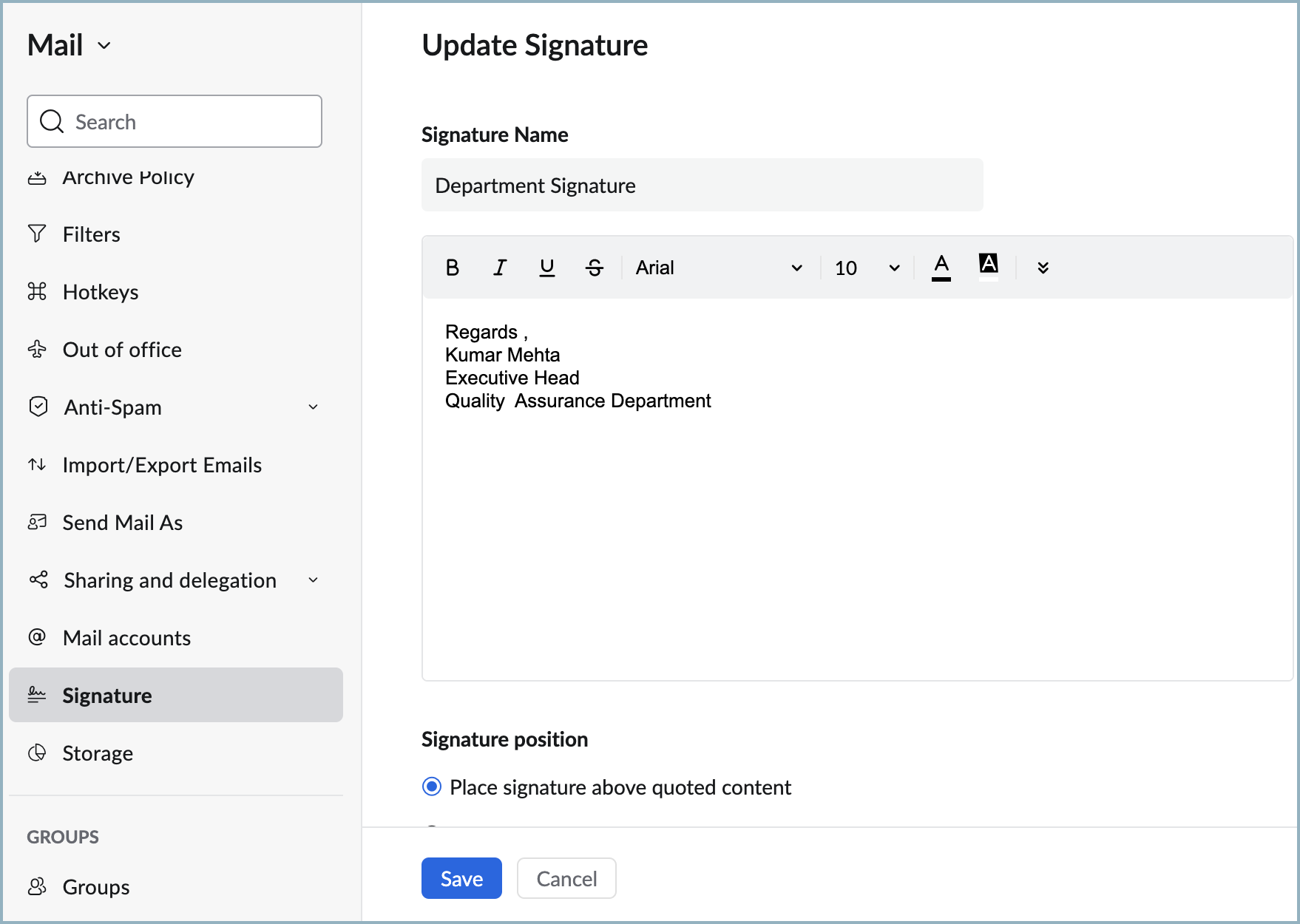
You need to link the Signature with the From address for the signature to appear automatically when you compose an email. You can use the 'Associate Mail Address' option to link with the From address while creating the signature or click the + icon in the existing signature to associate it with the required From address. Repeat the steps with different titles to add multiple signatures.
Note:
If the department administrator of your organization has configured a signature for your account, you will not be able to edit the signature. You also will not be able to associate a new signature to the email address associated with the Admin assigned signature. The admin-assigned signature is denoted with a lock icon.
Setting up default signatures for new emails
When you create a new signature you can choose to have it as the default signature for an email address. So, whenever you create a new email with the associated email address in the From field, the signature set as default for the email address will be auto-populated in the composer.
When you create a new signature, navigate to the Associated From address(es) for new emails section. This field lists the From email addresses associated with your account. You can select the email address with which you want to associate this signature.
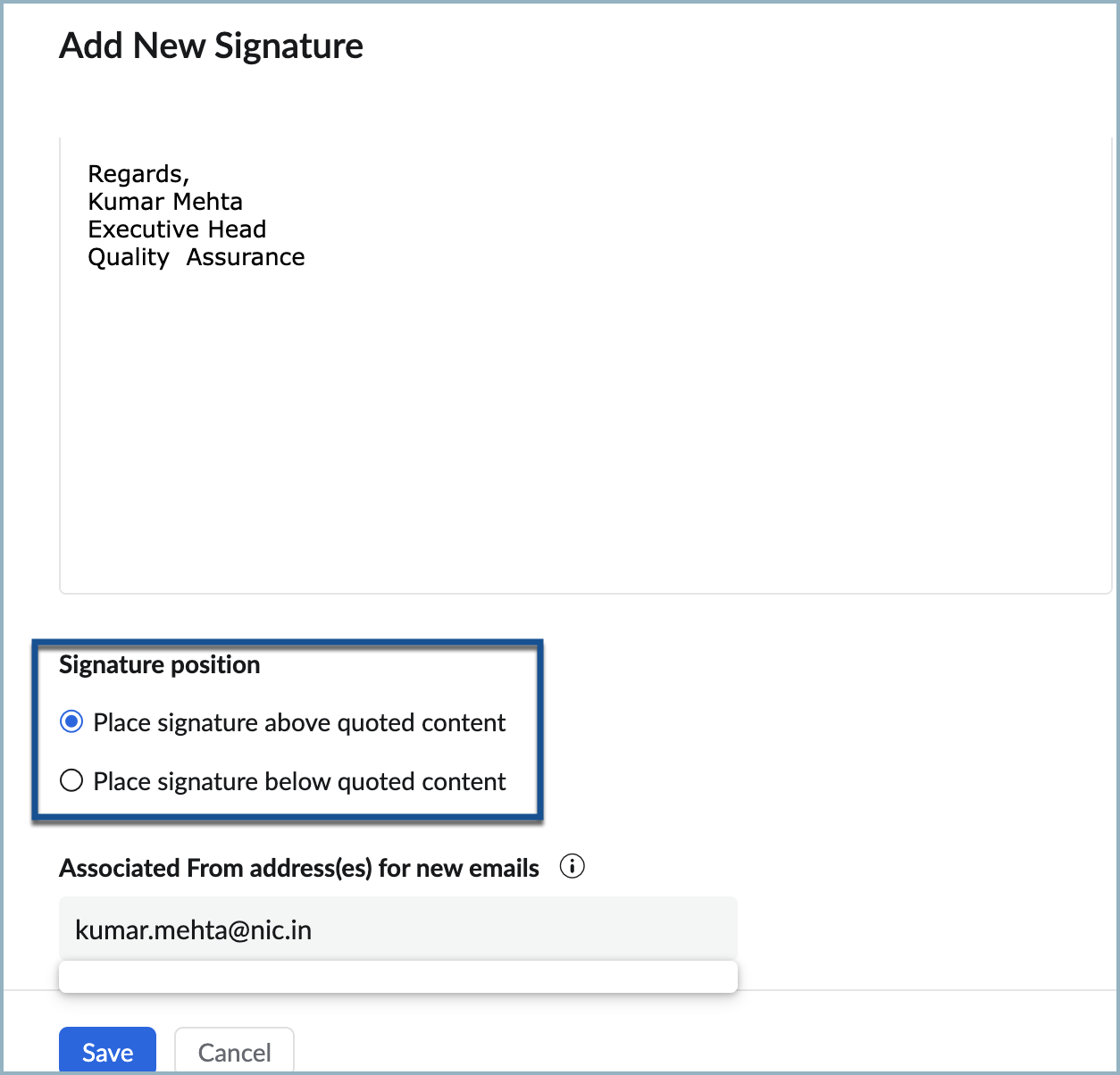
You can also choose to manually change the signature while composing an email using either the Signature icon or the Insert Signature option. The selected signature will replace the default signature for that particular email alone.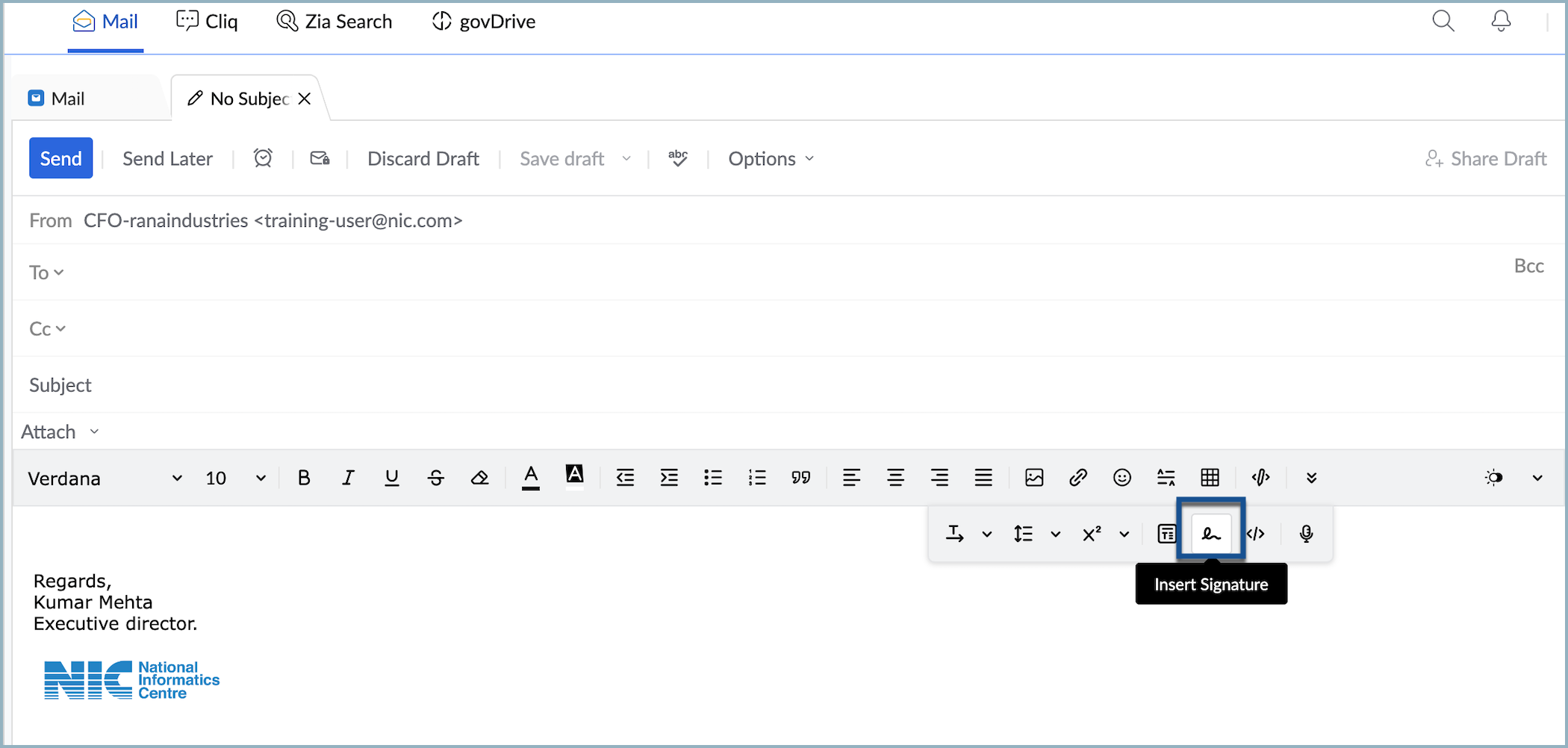
Signature in replies
You can choose to include/ not include signatures while replying to emails. To configure this option, click the Settings icon in the top pane and select the Add signature to all my email replies checkbox under Signature for replies. If you do not select this option, a signature will not be included in your email replies.
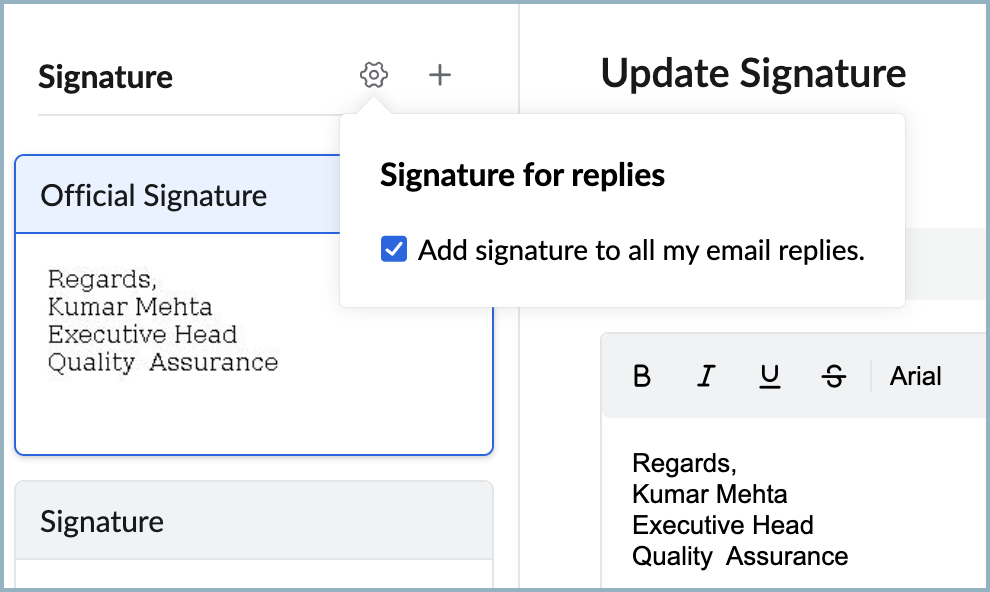
While replying to an email, you can choose where to insert the signature in the email. It can be placed either at the bottom of the mail composer (below the quoted text) or below the reply you just drafted (above the quoted text).
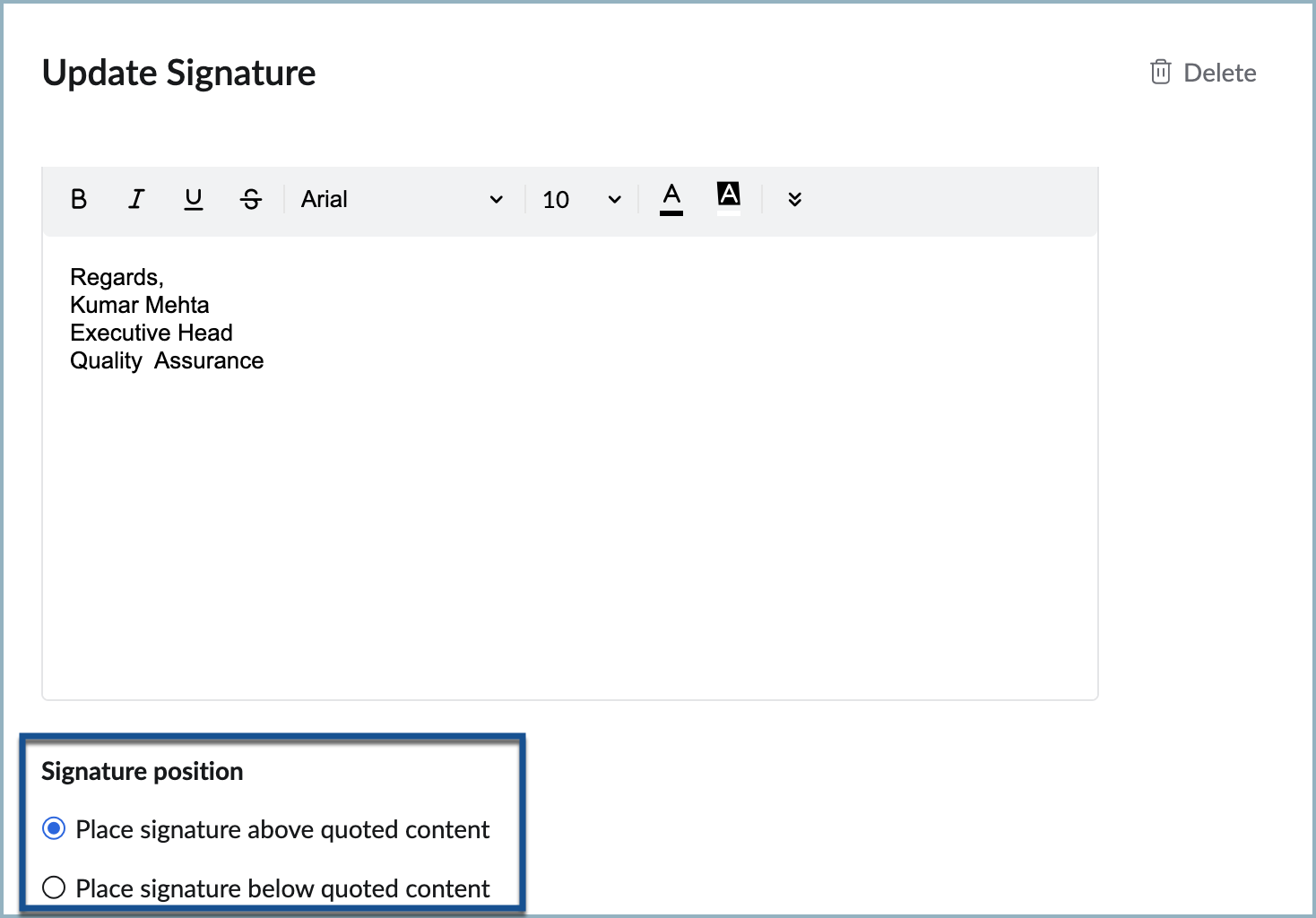
Setting up default reply signatures
You can also create signatures that you can use particularly while replying to emails.
To associate a signature for your reply emails, navigate to the Associated From address(es) for the replies section. This field lists all the email addresses or groups associated with your account. You can select the email address with which you want to associate this signature for your replies.
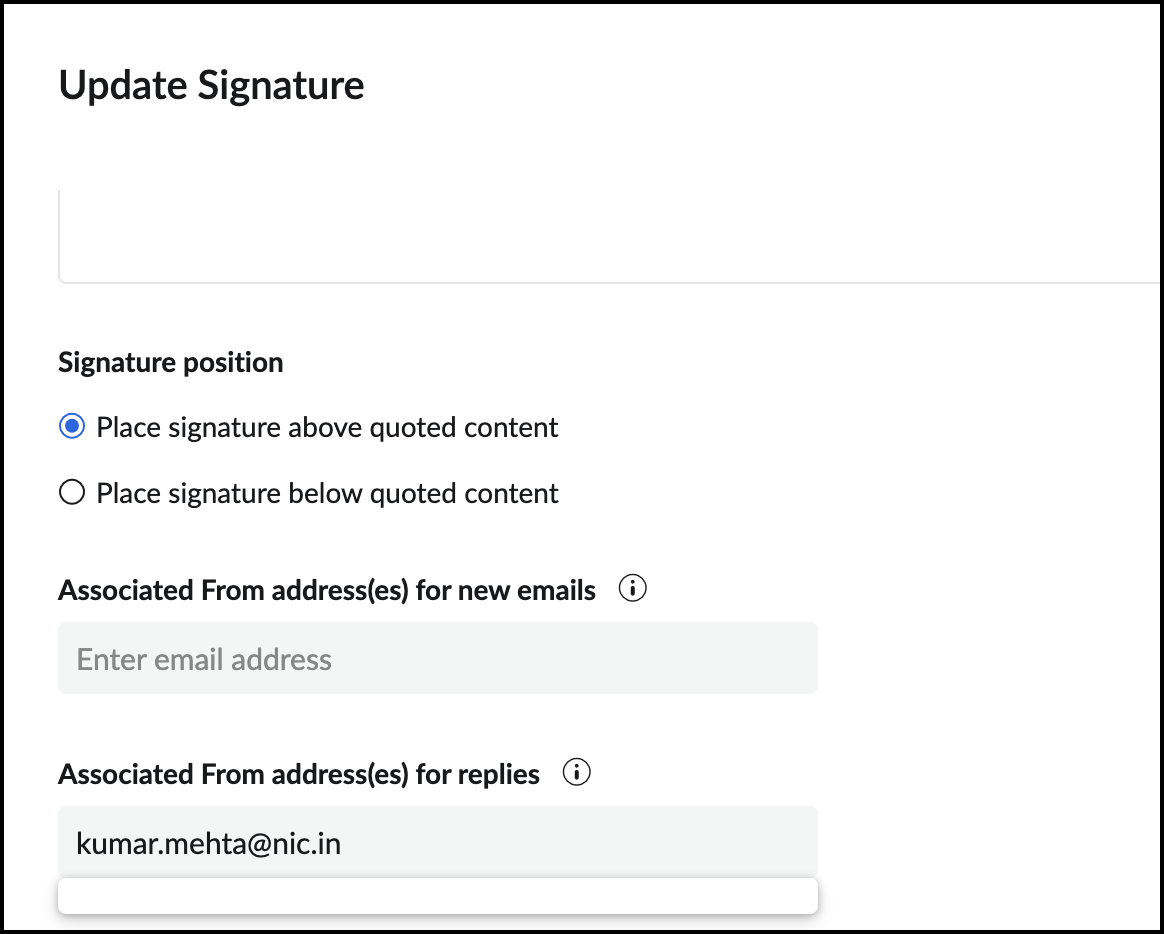
Note:
You must enable the Signature for replies option to auto-include signatures for email replies.
Associate Contact card
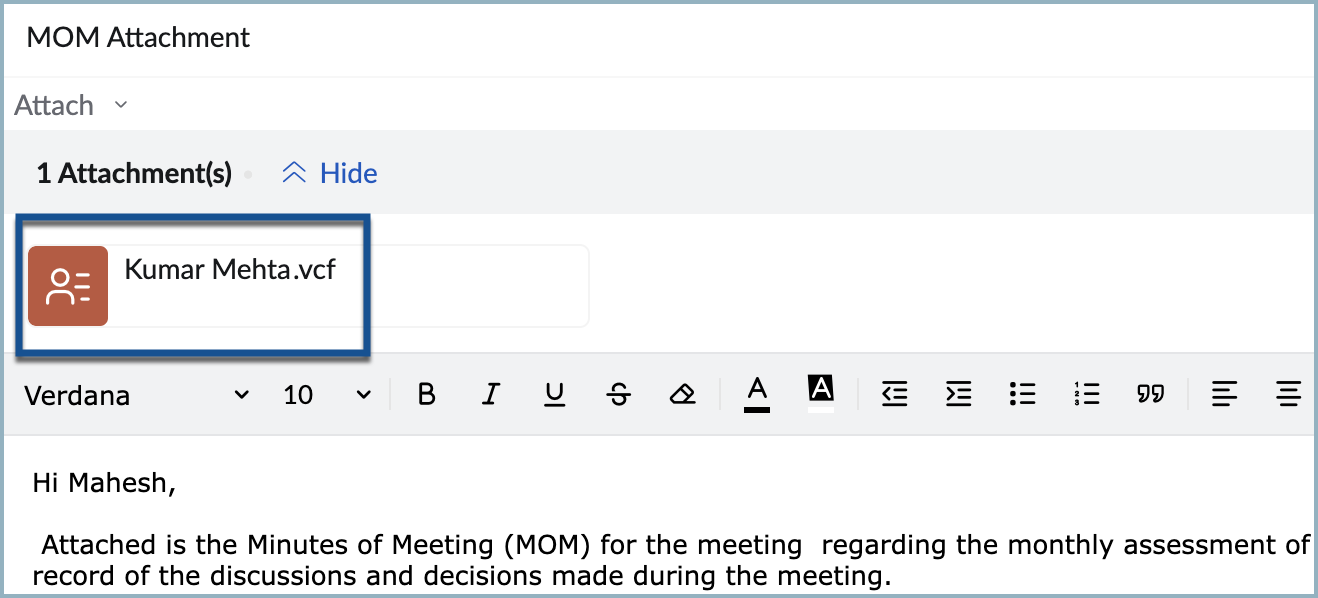
A vCard (virtual card) or contact card is a digital representation of a traditional business card. This contact card contains the contact information of a specific user, which can be associated with a signature. When linked to a signature, this contact card is automatically included as an attachment when you send or respond to an email using that signature. This enables the recipient to effortlessly save or import the contact card into their address book or contacts without manually entering the contact information.
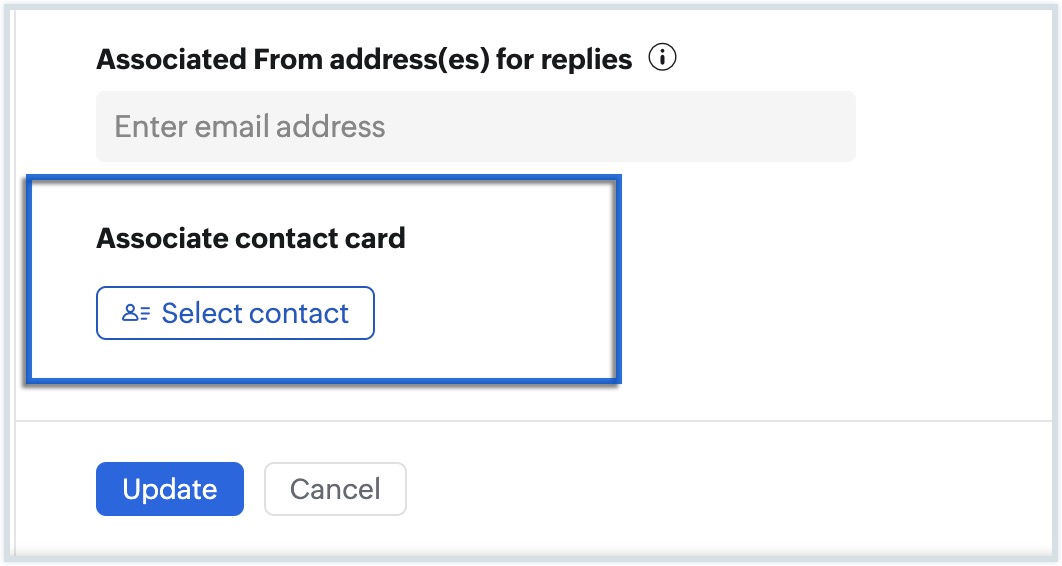
To associate a contact card with a signature, navigate to the signature with which you want to associate a contact card, click Select contact under Associate contact card section, select the user from the dropdown, and click Update.
Insert Images
You can also insert images into your signatures. Click on the Insert Image option to browse and insert the required image. Using the Insert image options, you can also choose how you want to display the image in the signature. Refer to this page for detailed instructions about inserting images.
Note:
When you create a signature by inserting HTML, the images inserted should have a functional public URL to be fetched and displayed. If you don't have a public URL for the images saved to your computer, you can insert them as Inline images and resize them based on your requirement.
Hyperlink image in a signature
You can also choose to hyperlink the images inserted into your signature. To hyperlink the image:
- Click on the image inserted into the signature.
- Click More from the Image options provided.
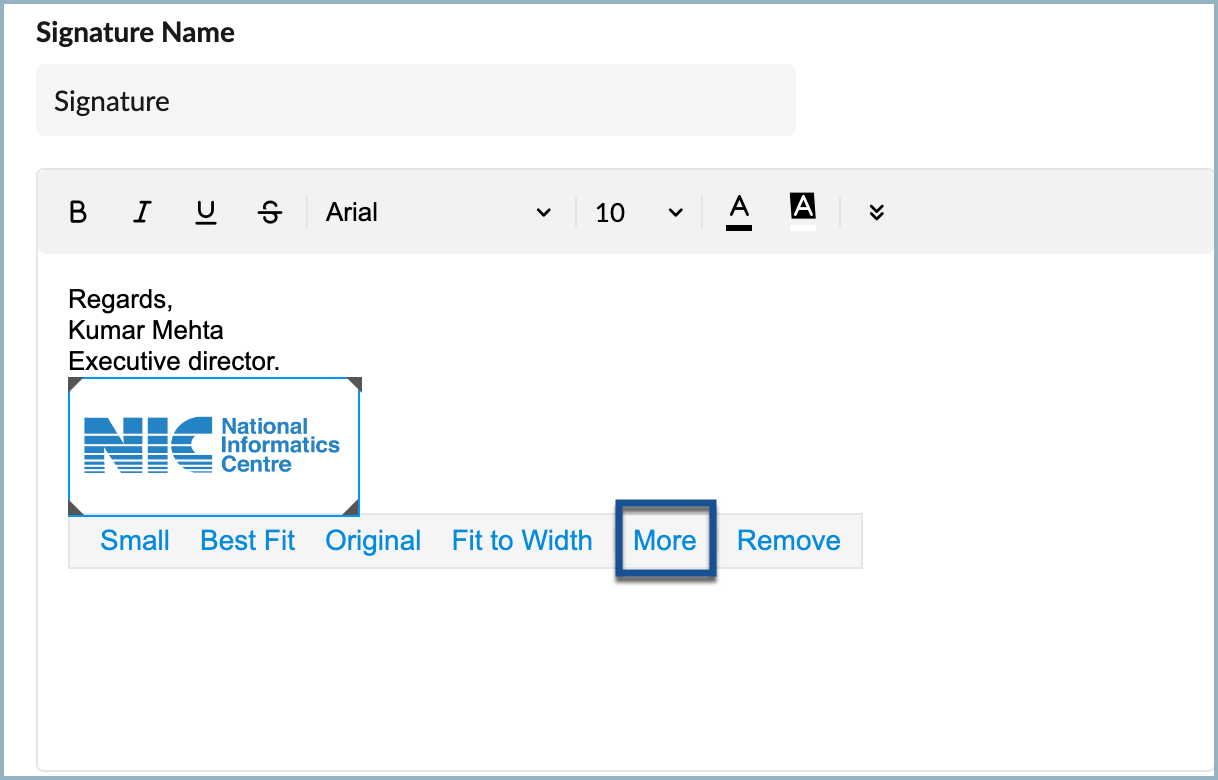
- Choose Link.
- Provide the URL in the Insert link pop-up.
- Click Insert
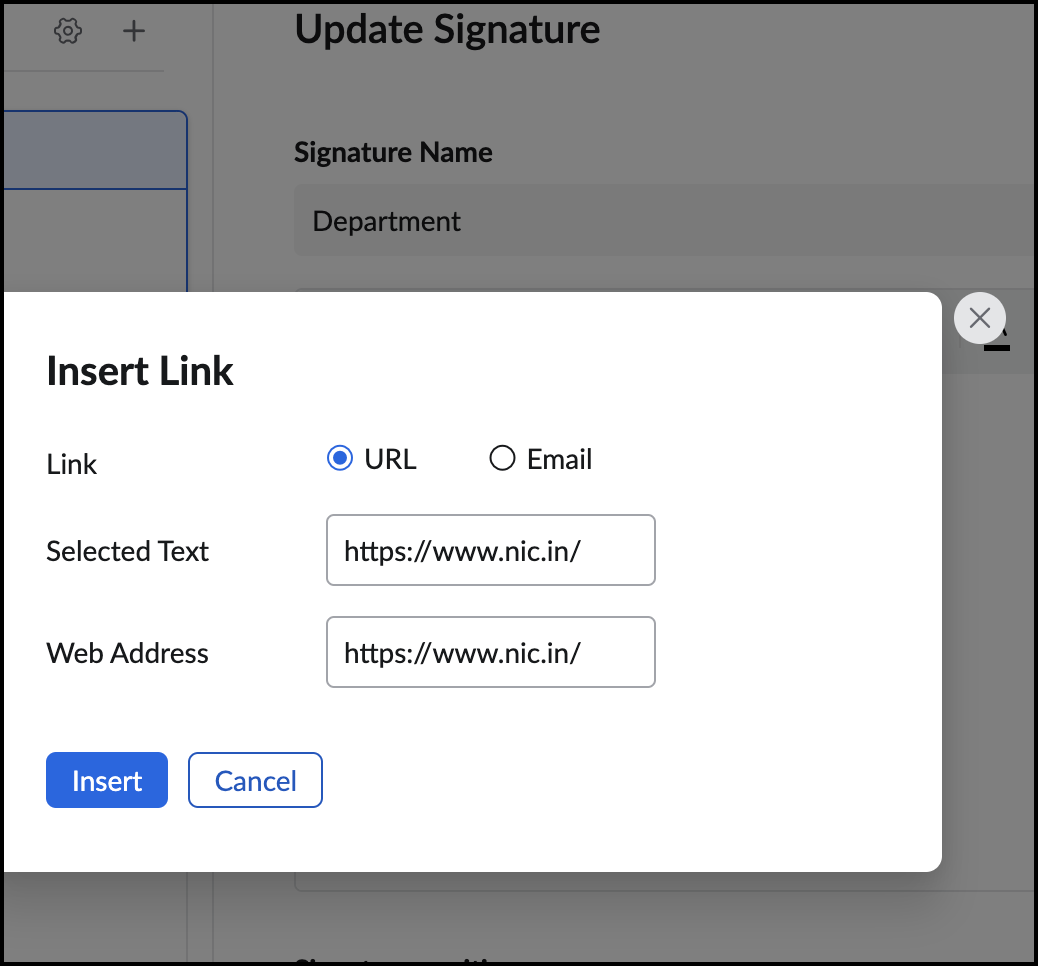
- Click Save or Update
Your signature will be saved and the image inserted into the signature will be hyperlinked.
Note:
Any formatting applied to the signature including images and hyperlinks will not be displayed when you compose your email in Plain text format.
Creating Signatures Using Mobile Applications
- Android
- IOS
Choosing and Managing Email Signatures in Gov Mail (Android)
To choose an email signature:
- Tap Main Menu icon on the top-left corner of the app.
- Tap the Settings icon in the module section at the top.
- Tap the email account for which you want to create the email signature.
- Scroll down and tap Signatures.
- Tap Signature Choice, then choose between the Gov Mail web app signature, Mobile Signature, or No Signature.
- Based on the option selected, the signature preview below will update accordingly.

Note
If you select Mobile Signature, the signature preview below becomes editable.Tap the preview, to edit the signature, and tap OK to save or update it. Changes made to the mobile signature or choosing the No Signature option on the mobile app will not be synced/reflected in the Gov Mail web app.
Creating and Managing Email Signatures in Gov Mail (iOS)
A. To create a new email signature:
- Tap the Settings icon in the bottom-right corner of the screen.
- Tap the email account for which you want to create the email signature.
- Scroll down and tap Signatures.
- Tap the Plus icon.
- Enter the signature name and provide the details of your signature.
- To add an image to the signature, click the Image icon, browse and choose the desired image from Photos.
- Tap the Tick icon to save the signature details.
Notes: Upon creating the signature, it will automatically be added to all the new emails you compose from the associated "From" email address . Toggle on the Signature in Email Replies option in the signature list page to automatically add the signatures to all emails you respond to as well.
B. Choosing the Signature Position
While replying to emails or forwarding them, you can position your signature above or below the quoted text. To do so:
- Tap the option next to Signature Position.
- Choose between Above or Below.
C. Associating Email Accounts with Signature
You can select all of the email accounts for which the signature you're creating now is to be set as the default signature. You can associate email accounts for both new emails you're composing as well as replies you're sending. To do so:
- Tap Associate "From" Address.
- Tap on the desired email accounts.
- Tap the Tick icon.
To dissociate an email account from the signature:
- Tap the Minus icon next to the email address.
- Tap Delete.
D. Associating Contact Card with Signature
You can associate a contact card with the signature you're creating to include it automatically in all the emails you send and respond to. This will help the recipient to save or import the details of the contact card into their address book or contacts without manually entering the contact information. To do so:
- Tap Add Contact.
- Search for and select the desired contact from the list.
To dissociate a contact card from the signature:
- Tap the Minus icon next to the contact card.
- Tap Delete.
E. Editing Email Signatures
To edit an email signature:
- Tap open the signature you want to edit.
- Make the desired changes.
- Tap the Tick icon once done.
F. Deleting Email Signatures
To delete an email signature:
- Tap the More Options icon next to the signature you wish to delete.
- Tap Delete.
- Confirm the action by tapping Delete in the alert that appears.
Related Pages
Images in Signature | Rich Text Signatures | Out of office message | Multiple From Addresses